

Starting conversations and collaborating in Channels is very similar to how do in Direct Messages in Orta. We’ve designed channels deliberately so your team can communicate easily and quickly.
Send a Message in a Channel:
Channel messages are where most of your team communication happens, right?
Use them to share updates, clarify work, ask questions, or simply keep things moving – all in one place where everyone has visibility.
To send a message:
- Open a channel from your chat list.
- Click on the message input field at the bottom.
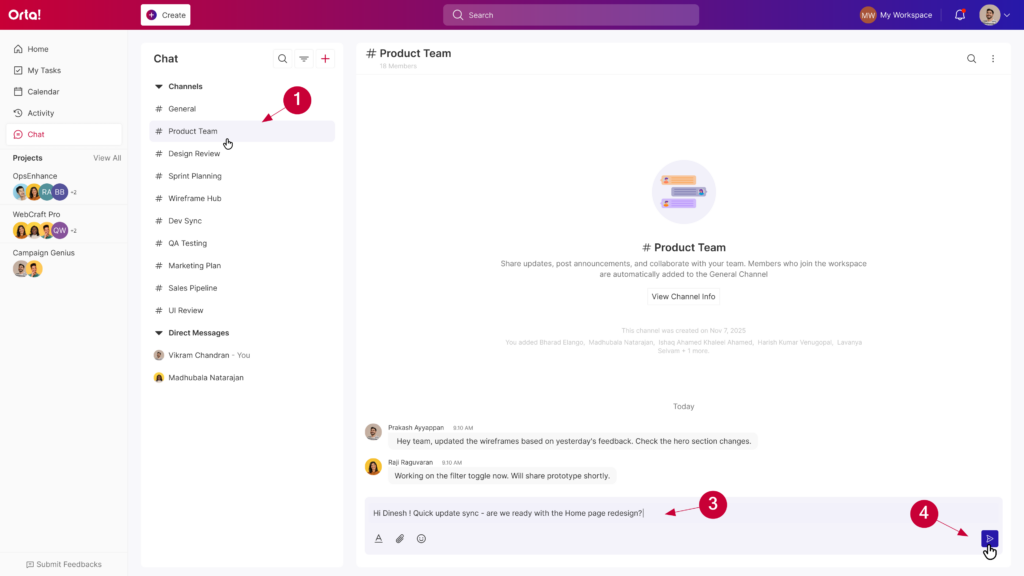
- Type your message.
- Press Enter or click on Send Message button to send.
Your message will be visible to all channel members.
Format and Enhance Your Message:
You can format your message before sending to make it clearer and easier to read.
Apply Formatting, then type:
- Click on the message input field.
- Click on Show Formatting icon A to display all the formatting options

- Click on any formatting option from the tool bar.
- B for Bold
- I for Italic
- U for Underline
- List for bullets or numbers
- Type your message with the formatting applied and Press Enter to send.
Type first, then format:
- Click on the message input field.
- Click on Show Formatting icon A to display all the formatting options
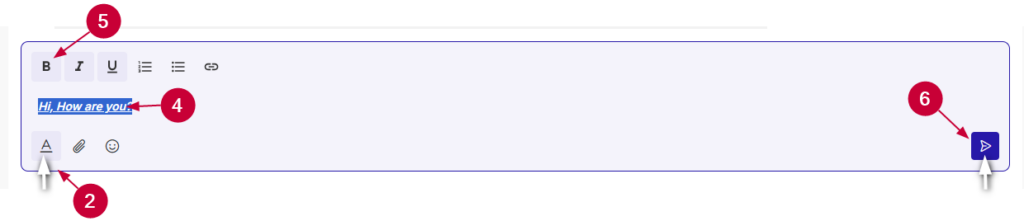
- Type your message.
- Select the text you want to format.
- Click a formatting option from the toolbar.
- B for Bold
- I for Italic
- U for Underline
- List for bullets or numbers
- Press Enter to send.
Mention a Teammate:
In active channels, mentions help ensure the right people don’t miss important updates.
- Type @ in the message field.
- Start typing the teammate’s name.
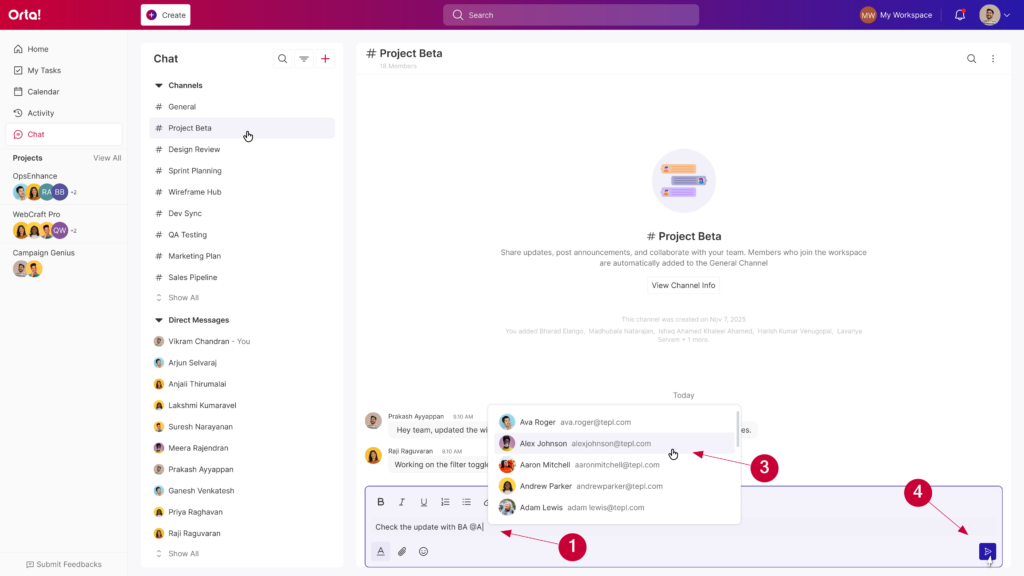
- Select the correct name from the suggestions.
- Complete and send your message.
The mentioned user will receive an immediate in-app notification and an email if they don’t view the message for 2 minutes.
Reply to a Message:
As discussions grow in Channels, quote replies help keep conversations organized by linking responses directly to the original message.
- Hover over the message you want to reply to.
- Click on the Quote in Reply option.
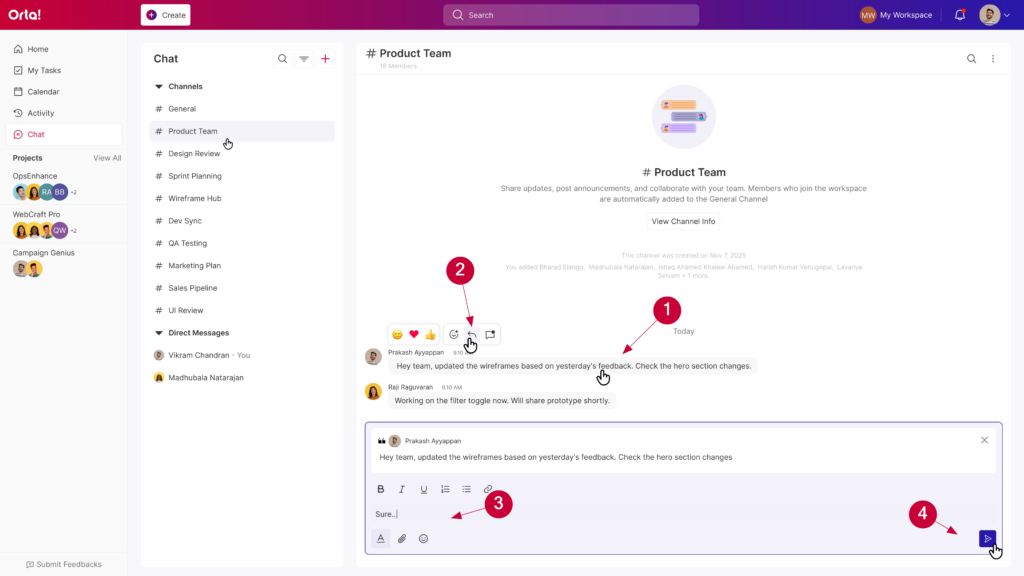
- Type your response.
- Press Enter or click Send Message to send.
Now your reply appears connected to the original message, keeping the conversation easier to follow.
React to a message:
Reactions are quick way to acknowledge messages without sending a new reply. Add emojis easily using the message toolbar or quick reactions.
Use Quick reactions:
Quick reactions allow you to respond instantly using suggested emojis available in the message toolbar.
- Hover over a message to reveal the message actions bar.
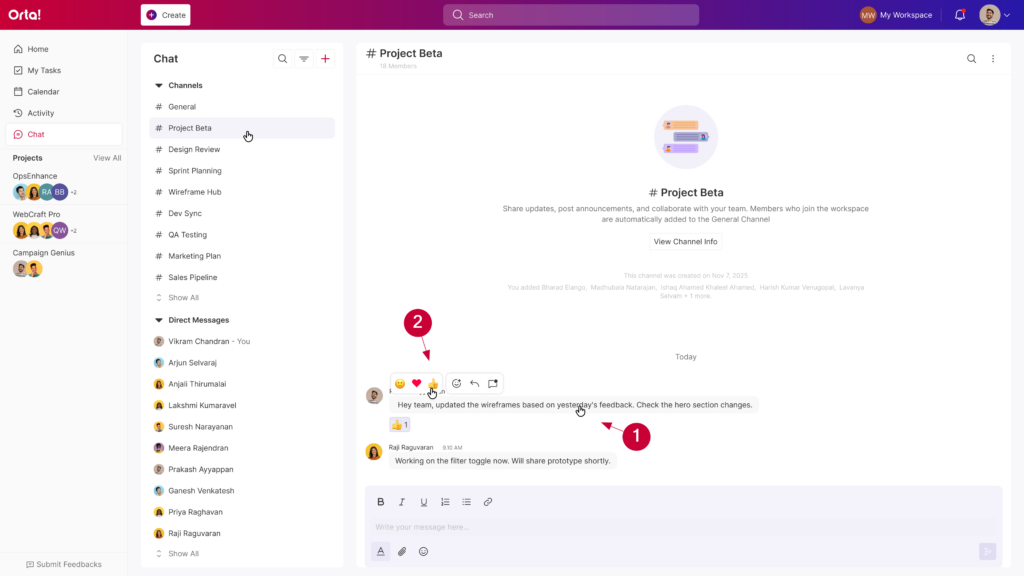
- Click one of the quick emoji options.
- The reaction is immediately added below the message.
Use the Emoji Picker:
If the suggested emojis don’t match what you want to express, you can choose from the full emoji picker.
- Hover over the message.
- Click on the Add Reaction icon in the message actions bar.
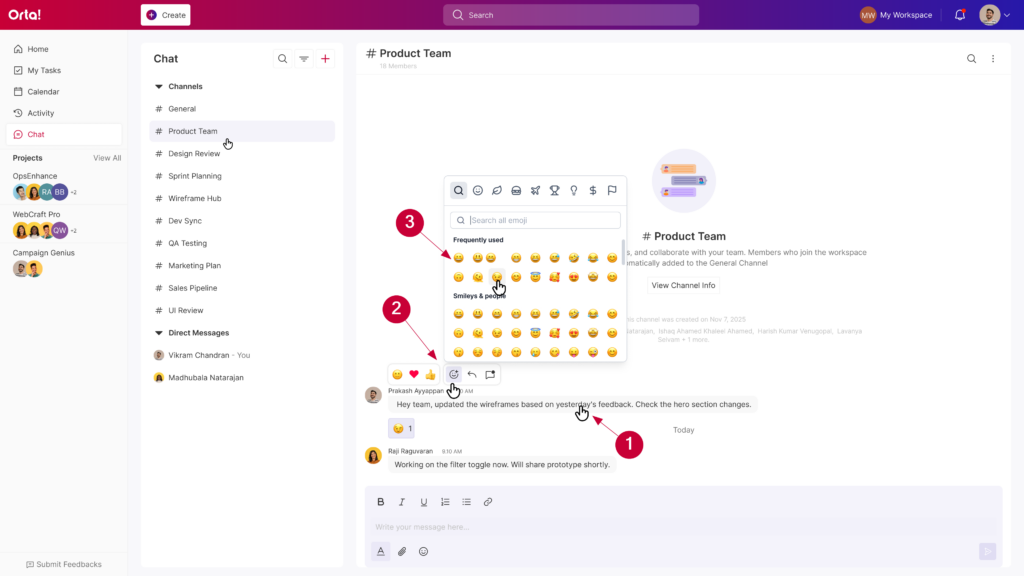
- Choose any emoji from the emoji picker.
- The selected emoji will appear in the reactions below the message.
Add to an Existing Reaction:
If someone has already reacted to a message, you can easily join that reaction instead of adding a new one.
- Look at the reactions displayed below the message.
- Click an existing reaction (for example 🤣, 🎉,🥳).
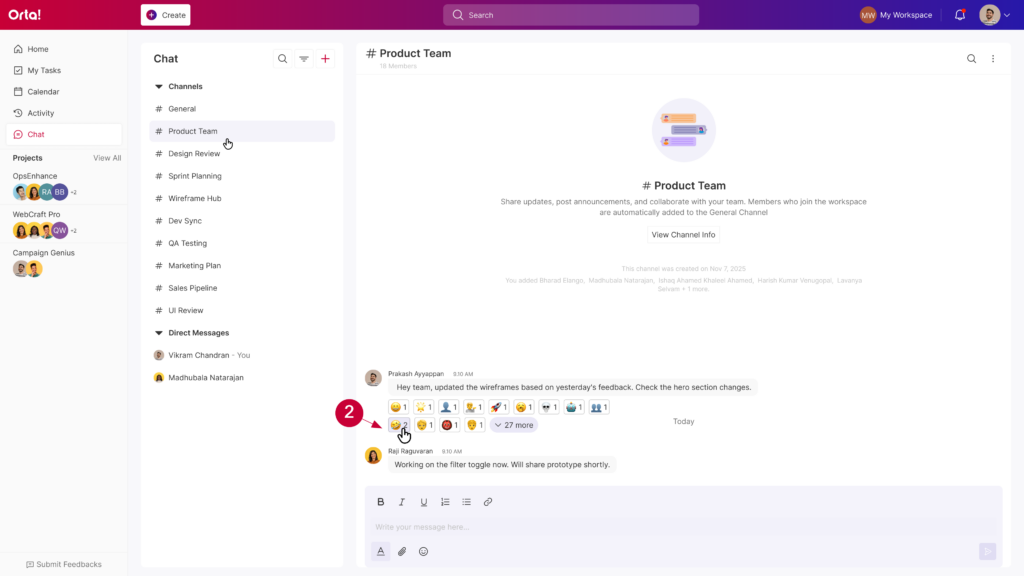
- Your reaction is added and the reaction count increases.
Whether you’re sharing updates, looping in teammates with mentions, replying in context, or using reactions to respond quickly, Channels in Orta bring team communication into one shared, organized space.