

Your chat list should work for you, not the other way around. Orta Chat provides simple controls to help you prioritize conversations, manage interruptions, and keep your workspace organized.
Mark as unread:
Sometimes you may have read a message but want to return to the message or conversation later. Marking a message or conversation as unread helps you keep it as a reminder.
Mark a conversation as unread:
To mark a chat/conversation as unread:
- Hover over a conversation in the chat list
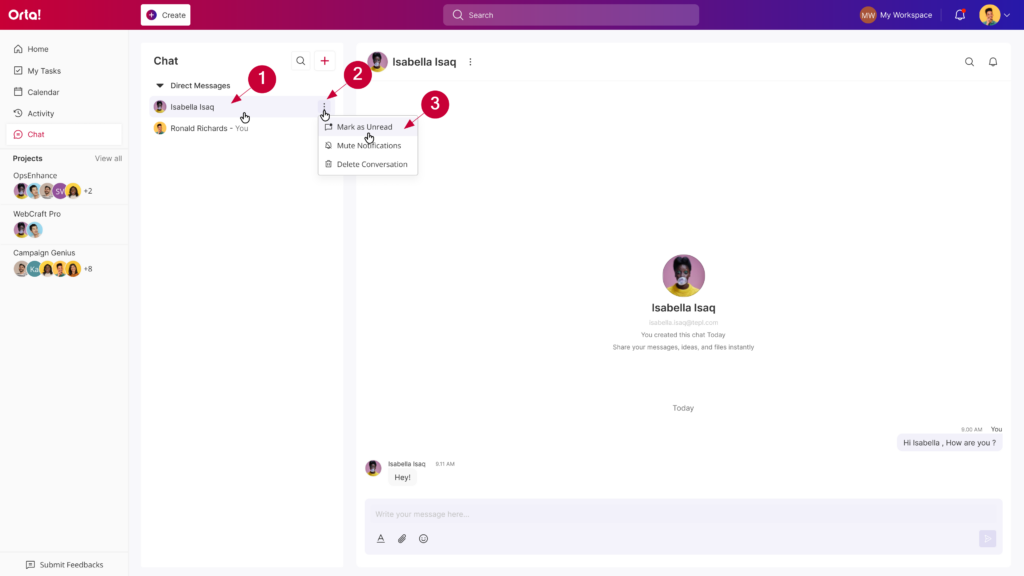
- Click the More options (⋮) icon.
- Select Mark as Unread.
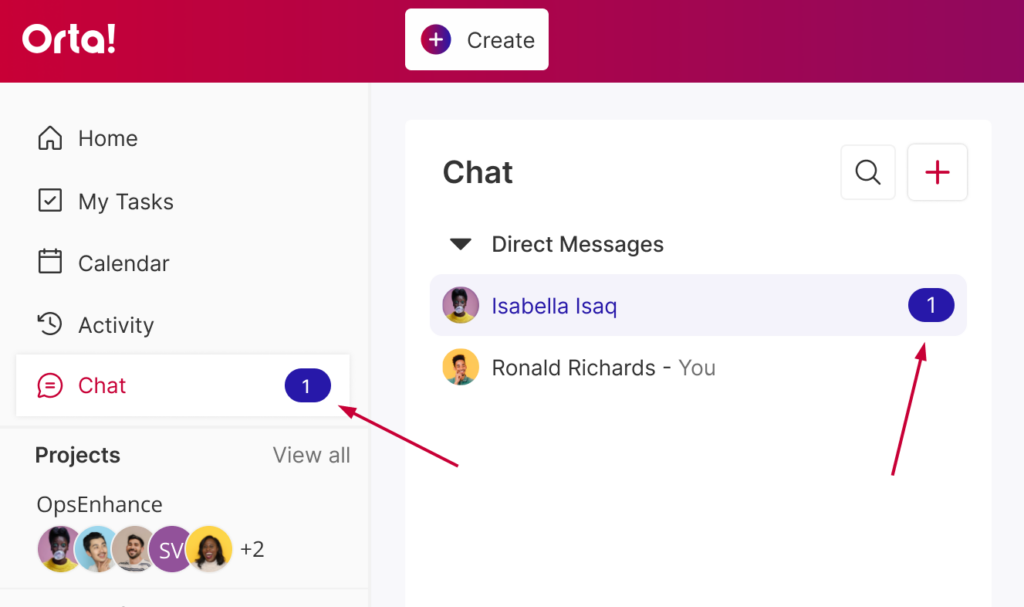
The conversation will reappear with an unread indicator, making it easy to revisit.
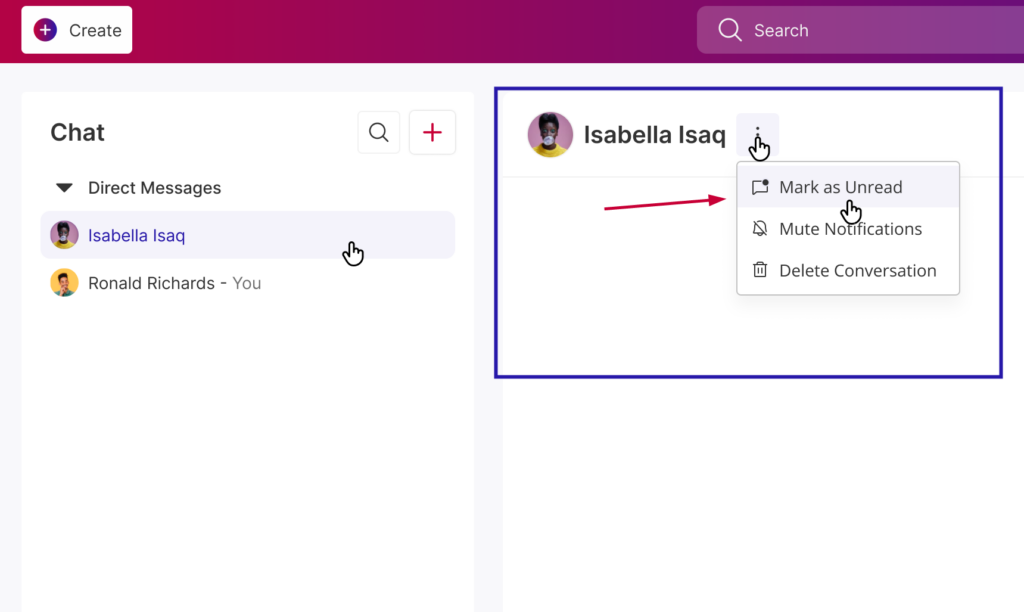
Alternatively, you can mark a conversation as unread from the chat header menu.
Mark a message as unread:
To mark a message as unread:
- Click on a conversation in the Chat list.
- Hover over any message in that Chat and Click on More Actions.
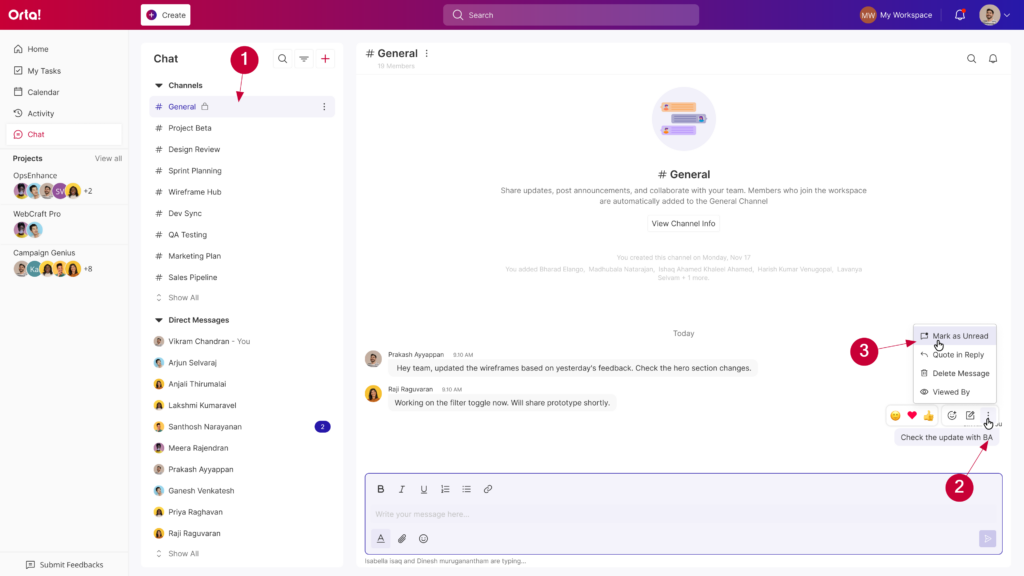
- Click on Mark as Unread icon.
All messages below the selected message will be marked as unread and both the main Chat menu and the specific conversation will display unread indicators.
Mute Notifications:
Sometimes conversations can become very active. To reduce interruptions and stay focused, you can mute notifications for specific conversations in Orta. Once muted, you will no longer receive notifications from that conversation until you choose to unmute it.
Option 1:
- Hover over any conversation in the Chat list.
- Click the More options (⋮) icon.
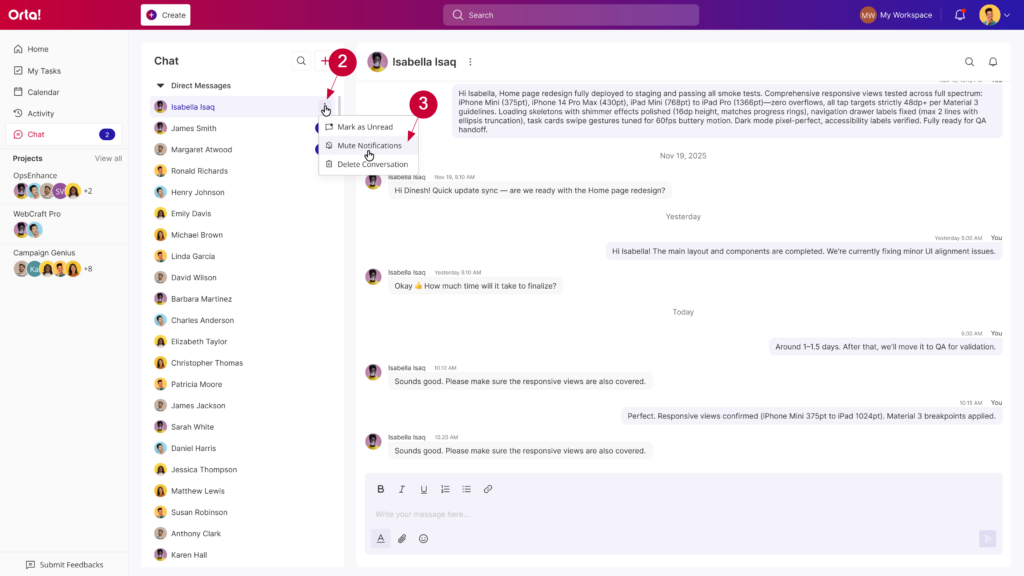
- Select Mute Notifications.
The conversation will be muted and moved to the bottom of the Chat List.
Option 2:
- Open the conversation you want to mute.
- Click the More Options (⋮) icon next to the participant’s name at the top of the conversation.
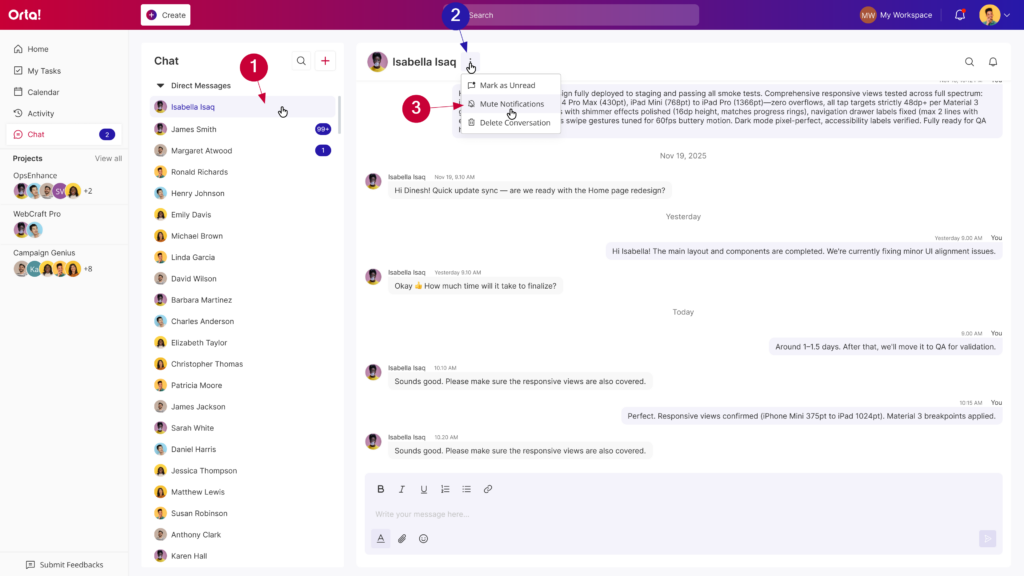
- Select Mute Notifications from the dropdown menu.
The conversation will be muted and moved to the bottom of the Chat List.
Option 3:
- Open any conversation.
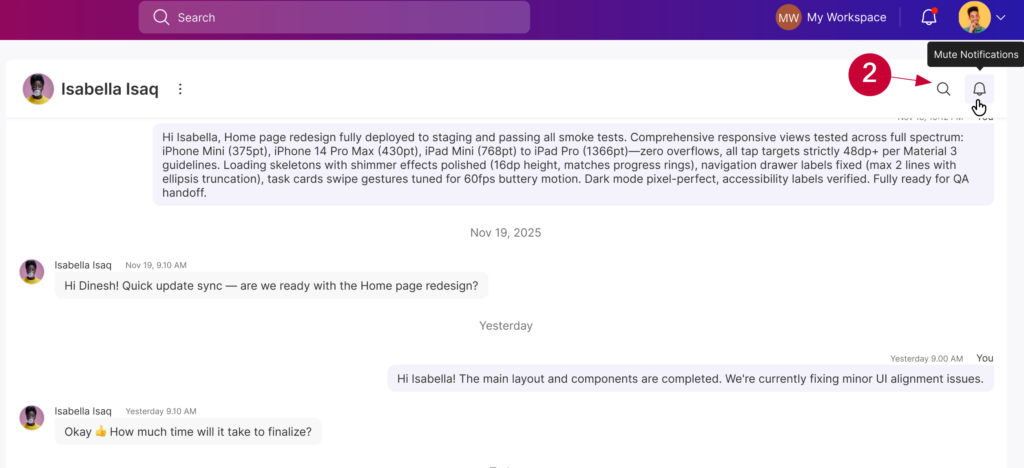
- Click Mute Notifications in the top-right corner of the conversation window to stop receiving notifications for the conversation.
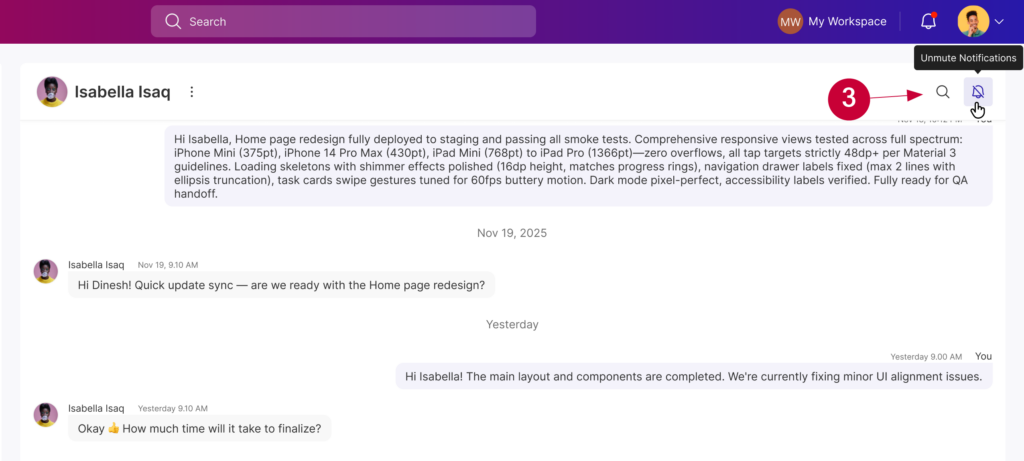
- Click Unmute Notifications to resume receiving notifications.
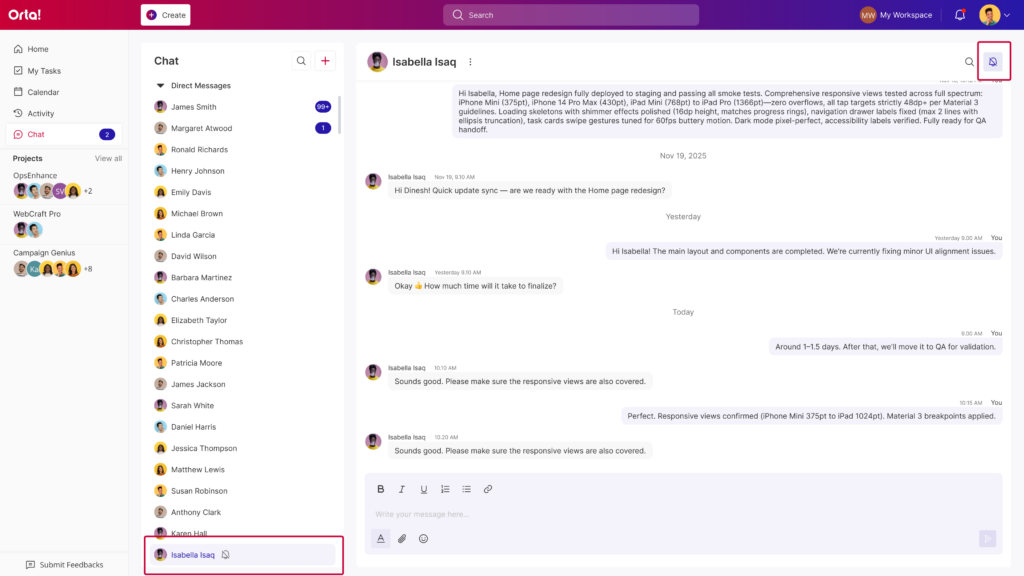
When a conversation is muted, it is moved to the bottom of the Chat List. Once unmuted, notifications will be restored and the conversation will return to its normal position based on activity.
Delete a conversation/message:
When a conversation/message is no longer needed, you can remove it from your chat list to keep things organized and updated.
To delete a chat:
- Hover over any conversation in the Chat list.
- Click the More options (⋮) icon.
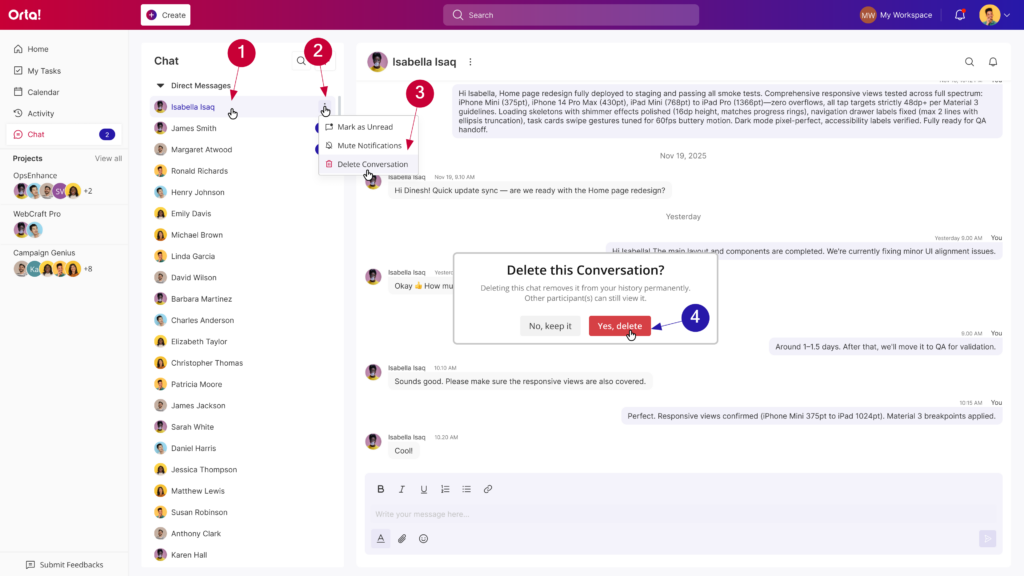
- Select Delete conversation.
- Click Yes, delete in the confirmation form and delete the conversation.
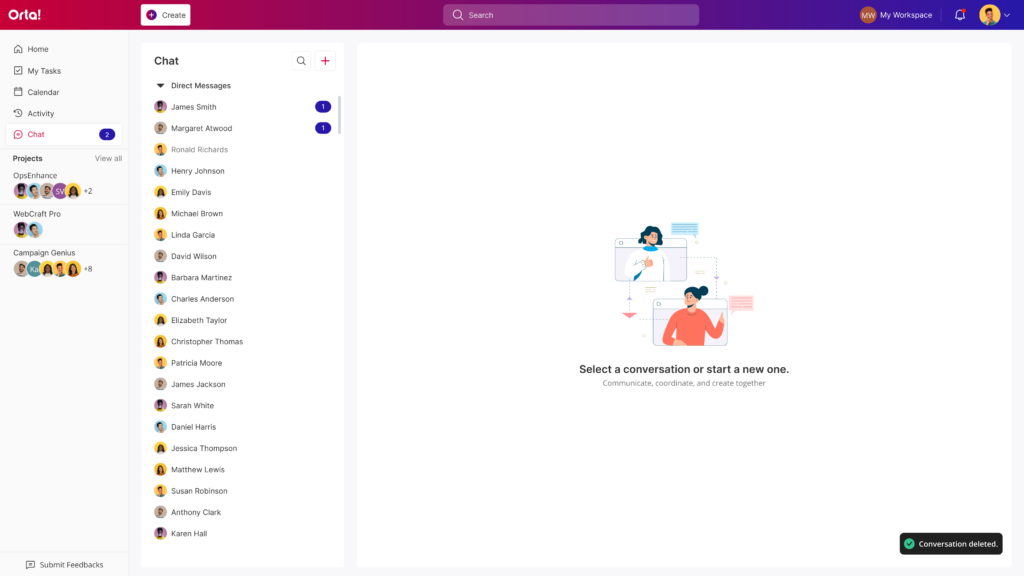
The conversation will be removed from your Chat list. Only in your list not on the receivers list.
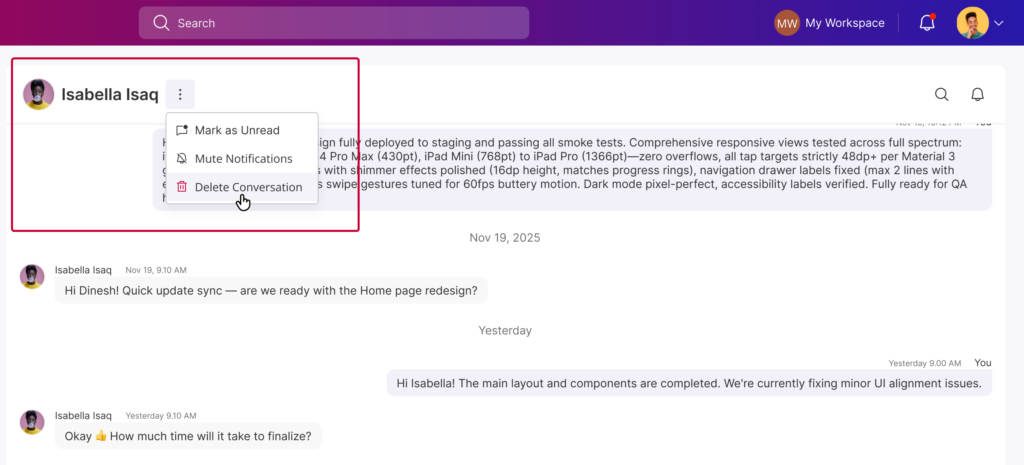
Alternatively, you can delete a conversation from the chat header menu.
To delete a message:
- Click on a conversation in the Chat list.
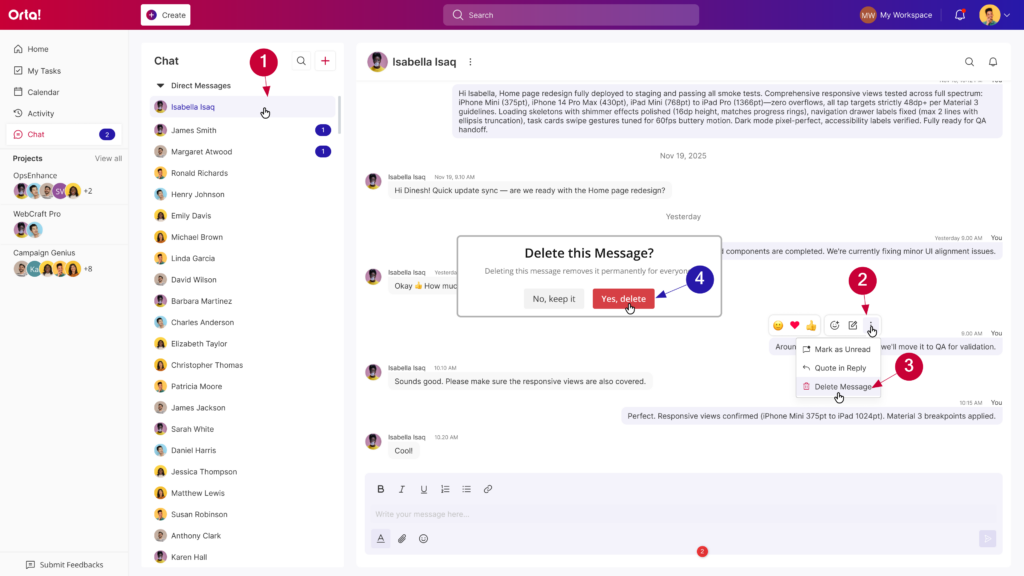
- Hover over any of your own message in that chat
- Click on the Delete Message button.
- Click Yes, delete in the confirmation form and delete the message.
Message will be deleted for everyone in the conversation.
With these conversation management options, Orta Chat helps you stay organized, reduce distractions, and keep your Chat focused on the conversations and messages that matter most.