

In Orta downgrade to Orta Basic plan can only be completed when:
- The workspace is active.
- The workspace usage is within the Orta Basic plan’s limit.
Therefore, it is important to understand how Usage Limits and the Grace Period affect the downgrade process, so you can quickly complete the steps required for a successful downgrade. Check out Understanding Usage limits and Grace period
Downgrade from Free Trial to Orta Basic
First and foremost, you cannot cancel or downgrade to the Orta Basic plan during the 60 day period. Once the trial period ends, you may choose to downgrade your workspace to the Orta Basic plan.
If the usage is within basic limits:
If your workspace is within Basic plan’s limits the downgrade process is really a straight forward approach. Let’s see how:
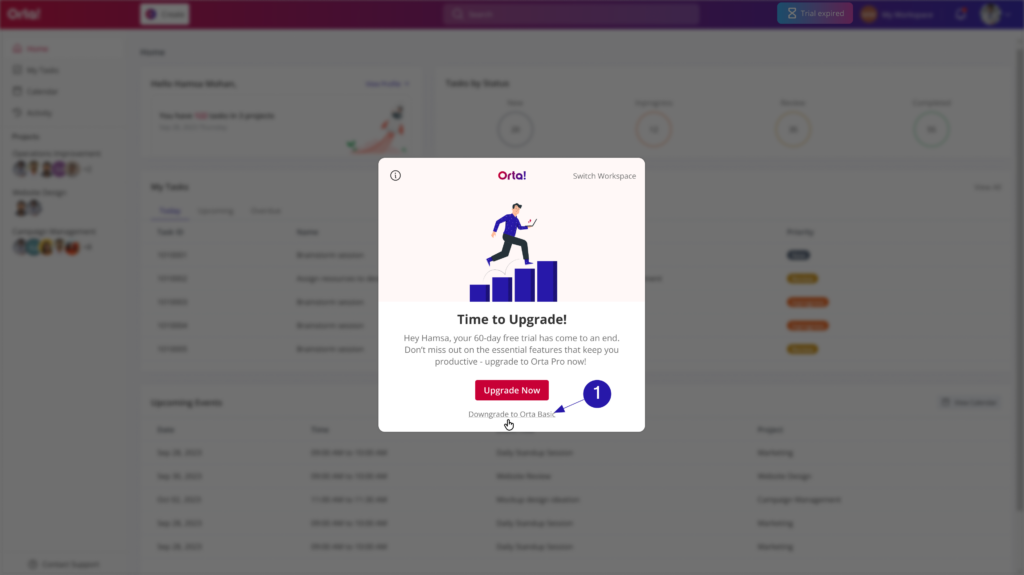
- Click Downgrade to Orta Basic in the pop up when re-enter your workspace.
- A confirmation message will appear.
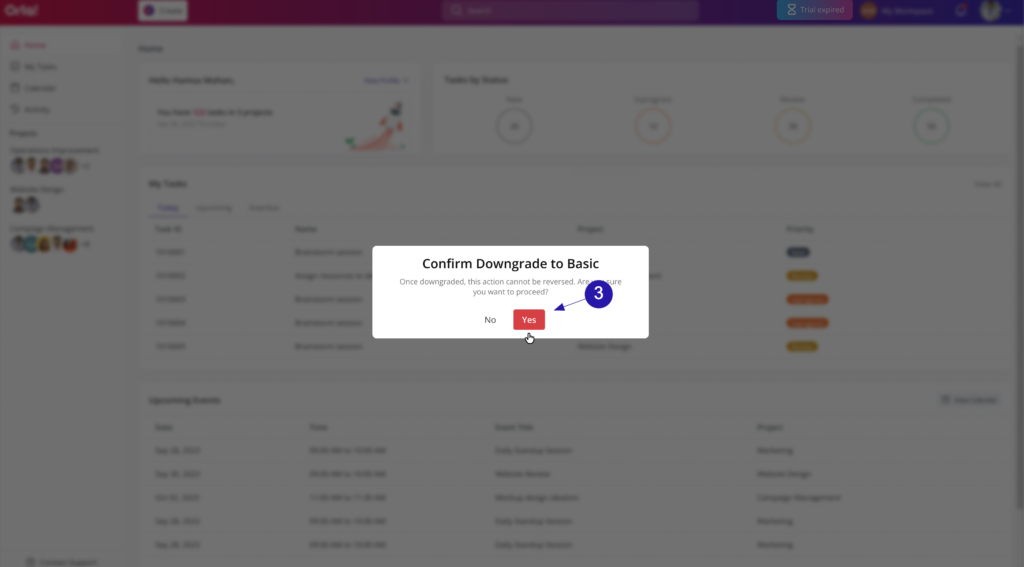
- Click Yes to complete the downgrade process.
Your workspace will be immediately moved to the Basic plan.
If the usage is over basic limits:
If your workspace exceeds the Basic plan’s limits, you will be redirected to the Workspace Usage section to review your usage and make the necessary adjustments before continuing with the downgrade.
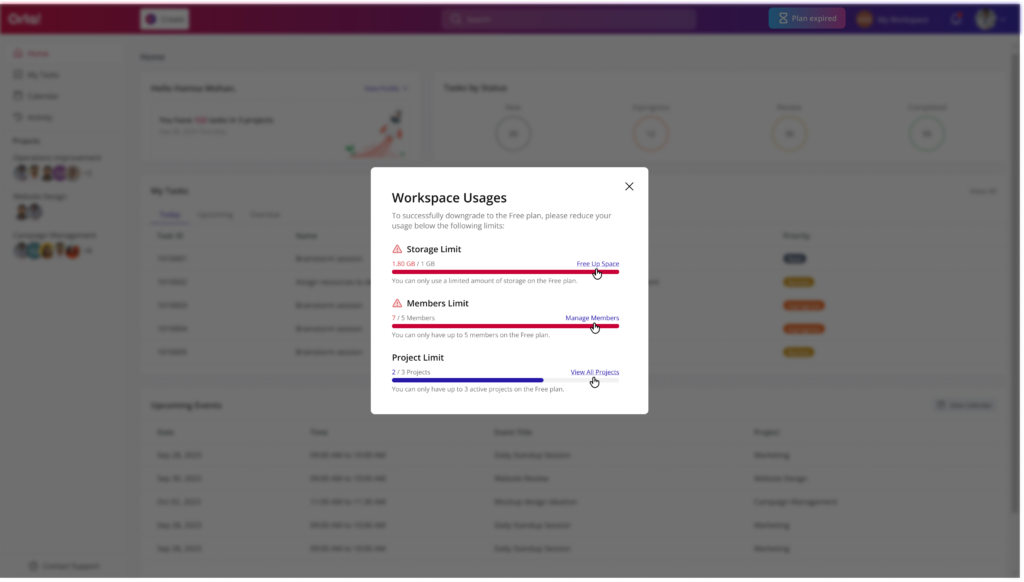
1. Storage Limit:
If storage exceeds the Basic Plan’s limit:
- Click Free Up Space to open the View All Projects page.
- Open a project and go to the Files tab.
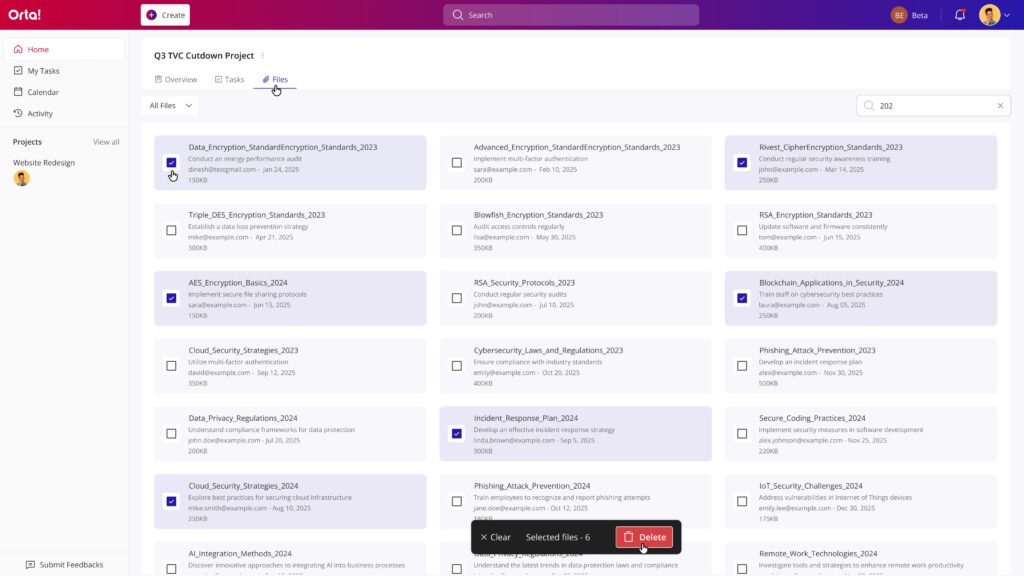
- Delete unnecessary or large files to reduce storage usage.
For detailed guidance, refer to the Files Tab under Inside Projects topic.
2. Project Limit:
If the number of projects exceeds the Basic Plan’s limit:
- Click View All Projects.
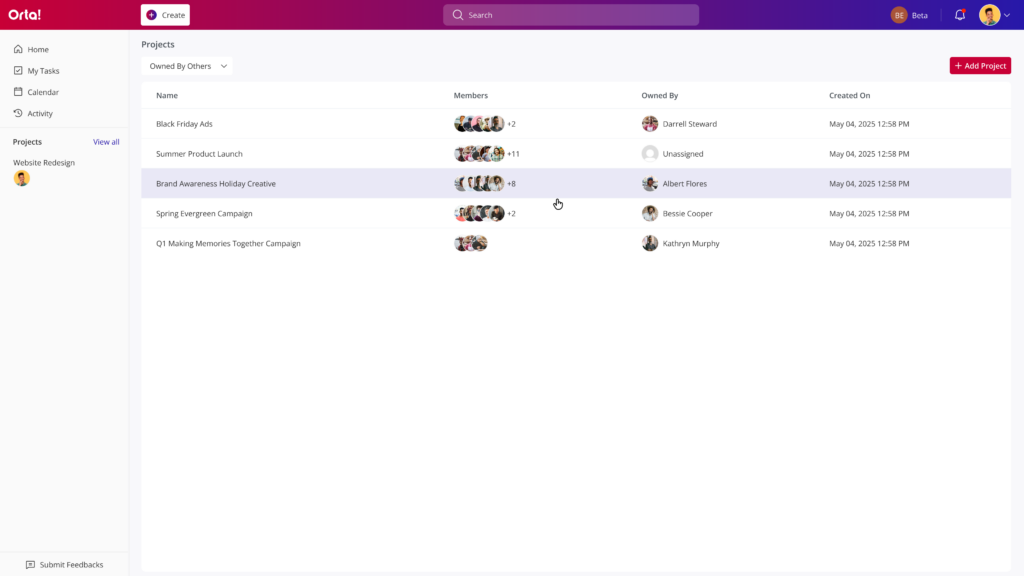
- Open the project you want to remove.
- Follow the steps in the Delete a Project page to complete the deletion process.
3. Members Limit:
If the number of members exceeds the Basic Plan’s limit:
- Click Manage Members to open Workspace settings.
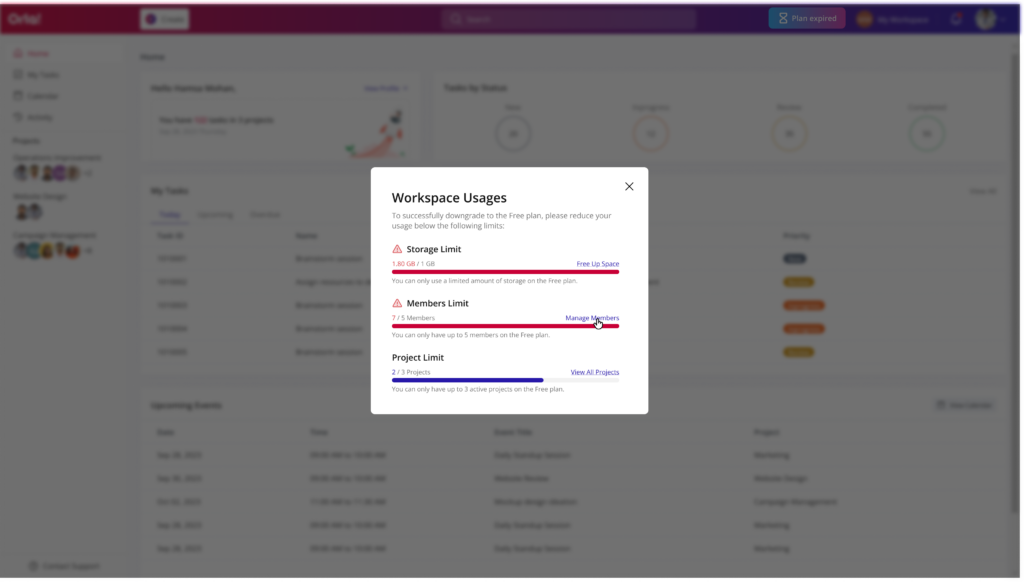
- Follow the steps in the Remove a Workspace Member page to complete the process.
Once all usage limits are within the allowed range, restart the downgrade process and confirm the downgrade to move your workspace to the Orta Basic plan.
Downgrade from Orta Pro to Orta Basic
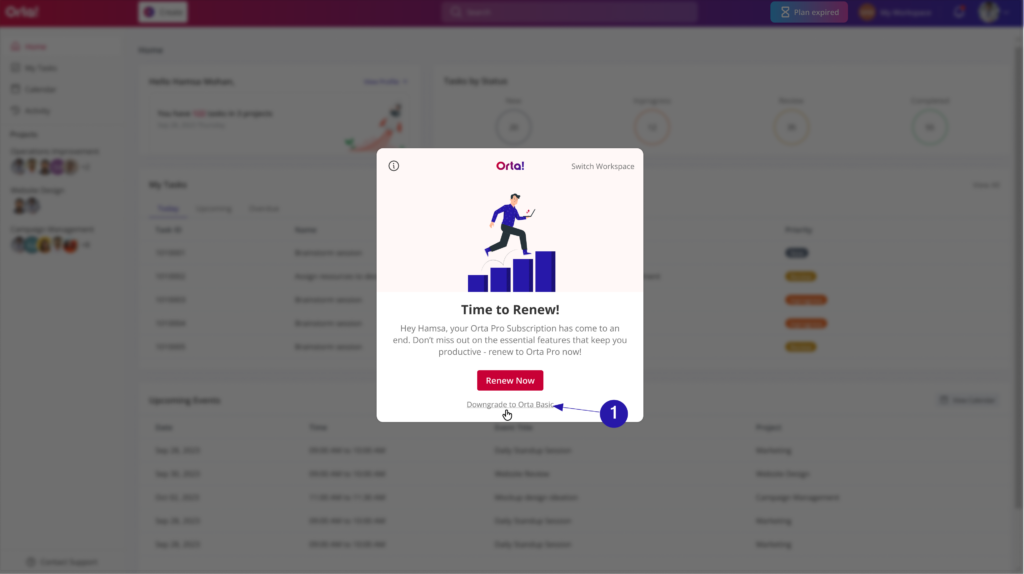
Once your Orta Pro subscription ends, a notification will be displayed when you enter your workspace. From there, you can choose to renew your subscription or downgrade your workspace to the Orta Basic plan. Now to downgrade:
If Usage Is Within Basic Limits:
- Click Downgrade to Orta Basic from the pop up.
- A confirmation message will appear.
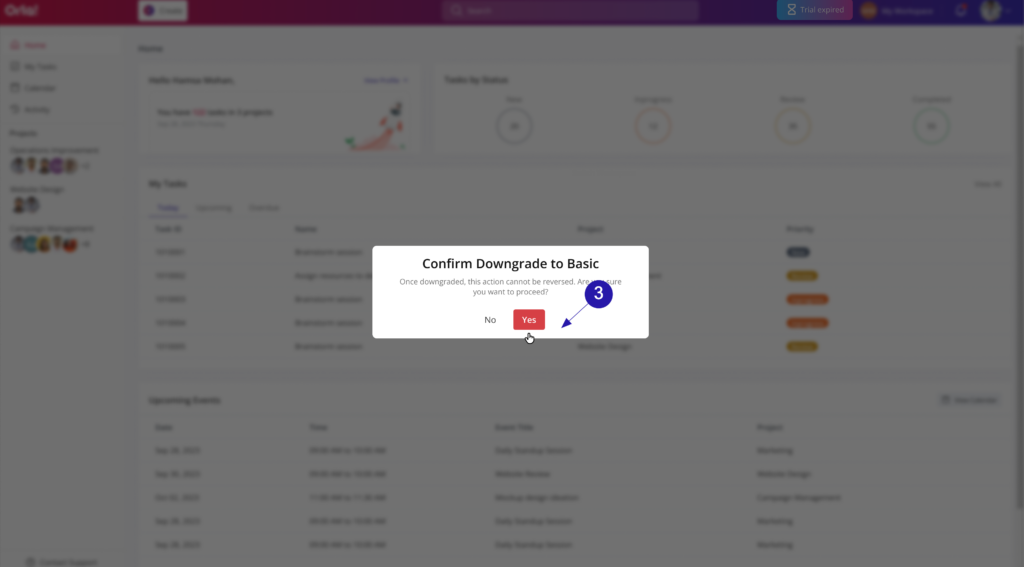
- Click Yes to proceed.
Your workspace will be immediately moved to the Orta Basic plan.
If Usage Exceeds Basic Limits:
If your workspace exceeds the Orta Basic plan limits, you will be redirected to the Workspace Usage section to make the necessary adjustments.
To learn how to resolve storage, project, or member limit issues, refer to the If Usage Exceeds Basic Limits section under Downgrade from Free Trial to Orta Basic.
Once all usage limits are within the allowed range, restart the downgrade process and confirm the downgrade to move your workspace to the Orta Basic plan.
With Orta’s usage validation and grace period process, you can review your workspace, make any necessary adjustments, and transition to the Orta Basic plan with confidence.