

Imagine you’re reviewing a task and need a quick clarification from a teammate. Instead of switching tools or sending an email, you can simply start a Direct Message in Orta and get the conversation going immediately.
To send a DM:
- Open Chat from the left Navigation bar.
- Click the New Chat (+) button in the Chat sidebar.
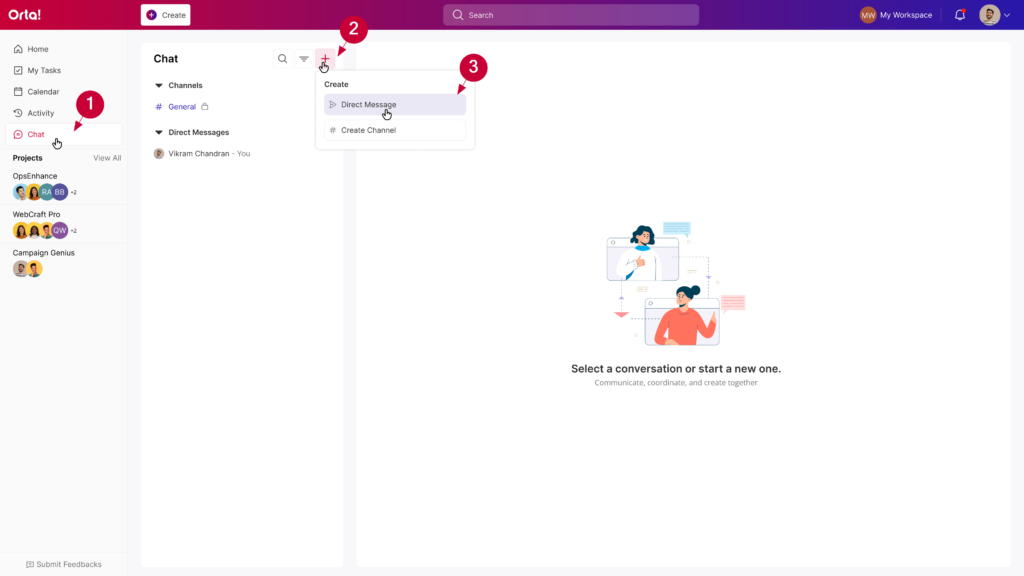
- Select Direct Message.
- In the Search field, enter the name of the person you want to message.
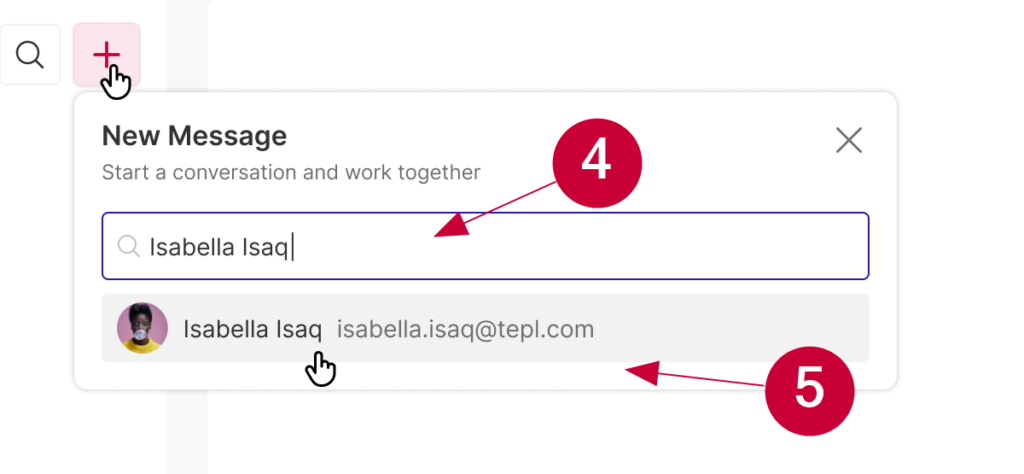
- Select their name from the dropdown.
Once selected, a new DM conversation opens.
- Type your message in the message field.
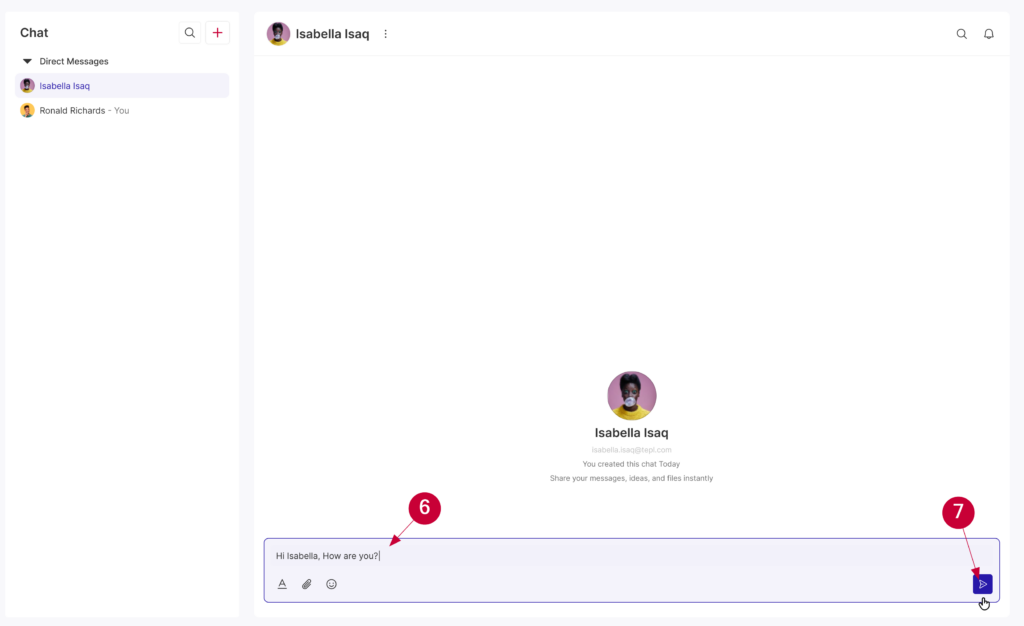
- Press Enter to send.
Format and Enhance Your Message:
You can format your message before sending to make it clearer and easier to read.
Apply Formatting, then type:
- Click on the message input field.

- Click on Show Formatting icon A to display all the formatting options
- Click on any formatting option from the tool bar.
- B for Bold
- I for Italic
- U for Underline
- List for bullets or numbers
- Type your message with the formatting applied and Press Enter to send.
Type first, then format:
- Click on the message input field.
- Click on Show Formatting icon A to display all the formatting options
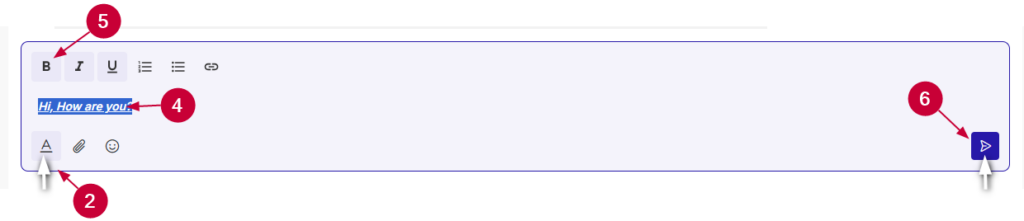
- Type your message.
- Select the text you want to format.
- Click a formatting option from the toolbar.
- B for Bold
- I for Italic
- U for Underline
- List for bullets or numbers
- Press Enter to send.
Mention a user in a message:
Sometimes, you may want to ensure an important message gets noticed. Mentions help highlight your message so the recipient receives a notification.
When you mention someone in a DM, they will receive an immediate in-app notification. If the message remains unseen for 2 minutes, an email notification will also be sent.
- Type @ in the message field.
- Start typing the team member’s name.
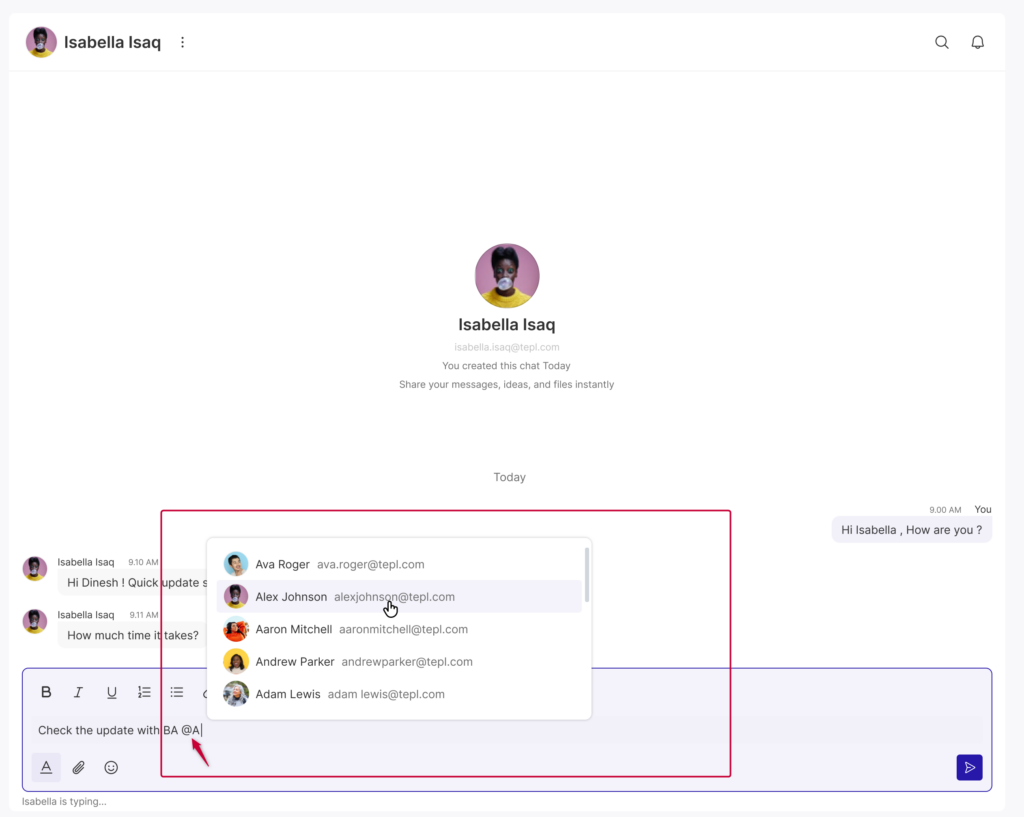
- Select the correct name from the suggestion list.
- Finish typing your message and send it.
Reply to a message:
As the conversation grows, you might want to respond to a specific point raised earlier. Quote replies help keep discussions organized by attaching responses directly to the original message.
- Hover over the message you want to reply to.
- Click the Reply option.
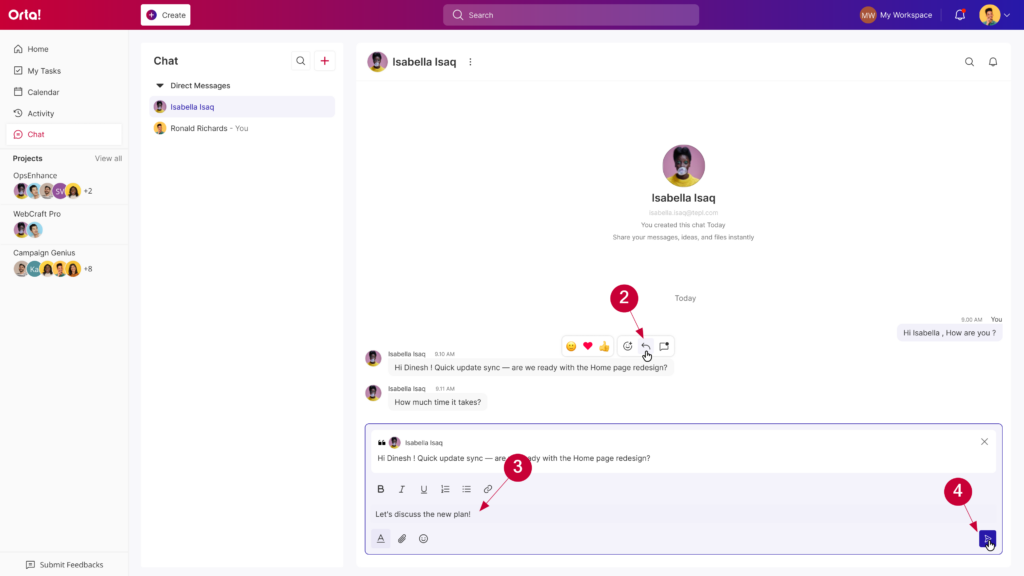
- Type your response.
- Press Enter to send.
Now your reply appears connected to the original message, keeping the conversation easier to follow.
React to a message:
Reactions are quick way to acknowledge messages without sending a new reply. From the message toolbar and the quick reactions bar, you can react in several ways.
Use Quick reactions:
Quick reactions allow you to respond instantly using suggested emojis available in the message toolbar.
- Hover over a message to reveal the message actions bar.
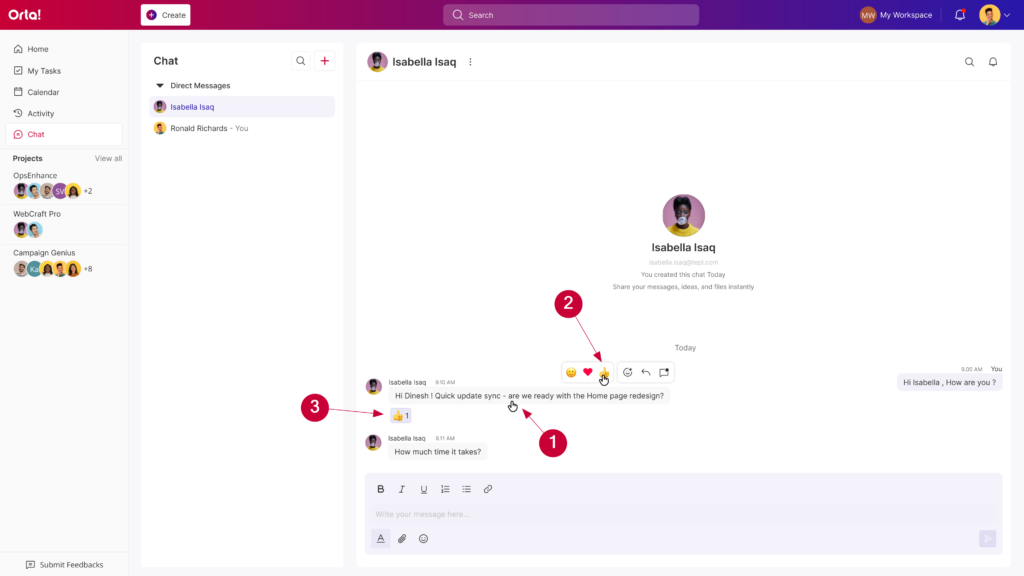
- Click one of the quick emoji options.
- The reaction is immediately added below the message.
Use the Emoji Picker:
If the suggested emojis don’t match what you want to express, you can choose from the full emoji picker.
- Hover over a message to reveal the message actions bar.
- Click on the Add Reaction icon in it.
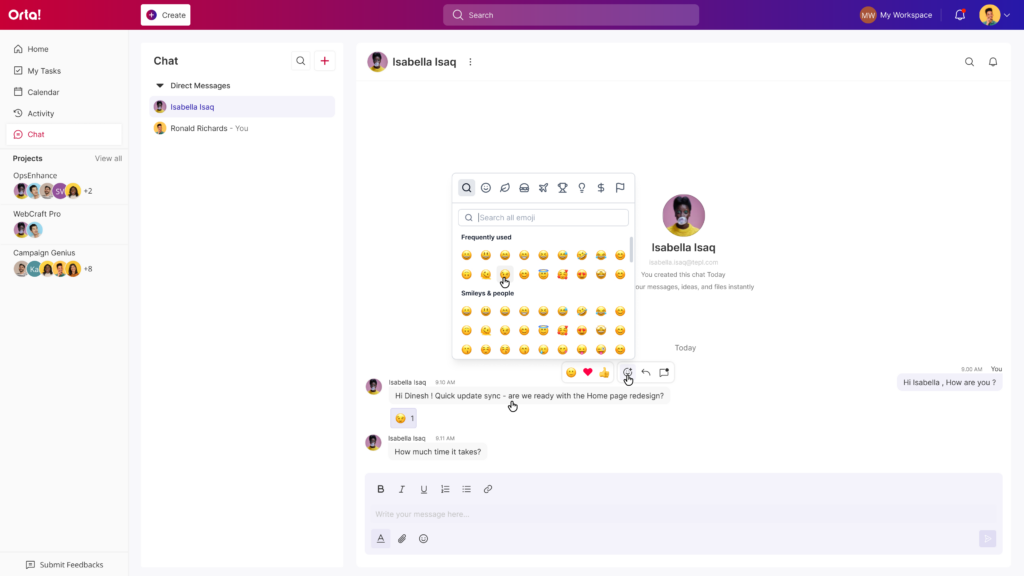
- Choose any emoji from the emoji picker.
- The selected emoji will appear in the reactions below the message.
Add to an Existing Reaction:
If someone has already reacted to a message, you can easily join that reaction instead of adding a new one.
- Look at the reactions displayed below the message.
- Click an existing reaction (for example 😇, 🎉, 🥳).
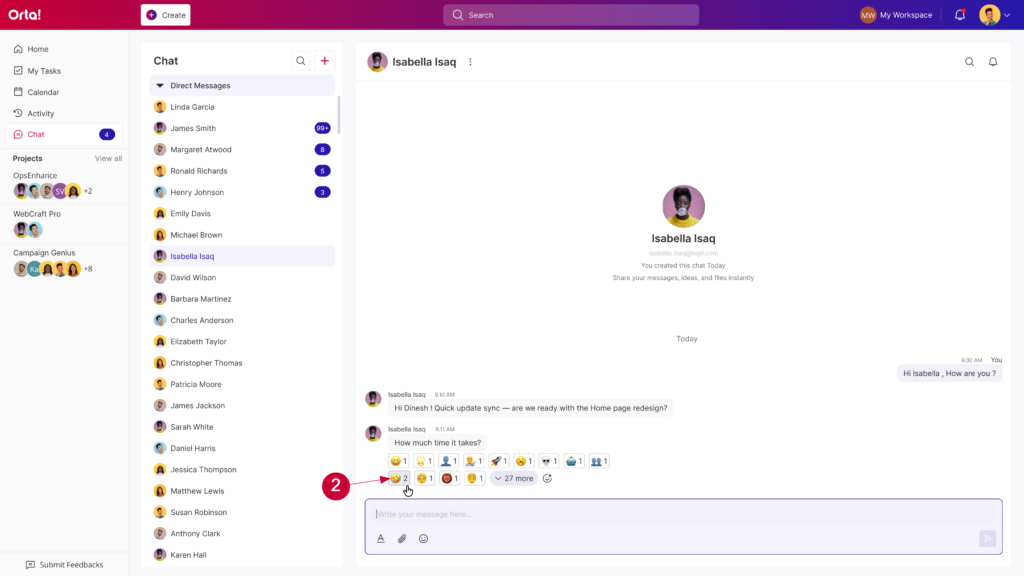
- Your reaction is added and the reaction count increases.
With Direct Messages, mentions, replies, and reactions, all enhanced by formatting, attachments, and emojis – Orta Chat keeps every conversation clear, contextual, and connected to your work, so teams can communicate faster and move forward without friction.