

Throughout the day, conversations continue across multiple DMs and channels, making it harder to stay on track and maintain flow. Orta Chat simplifies this by giving you simple controls to help you manage these conversations, track what needs attention, and organize your chats more effectively.
Chat Filters:
When you have many ongoing conversations, finding the right one quickly becomes important. Chat Filters in Orta help you organize the chat list and focus only on the conversations that matter at the moment.
Filters allow you to instantly narrow down the chat panel to unread conversations, channels, or direct messages, making navigation faster and more efficient.
To use chat filters:
- Open the Chat menu from the Navigation bar.
- At the top of the chat list, click the Show/Hide Filters button (next to the search icon).
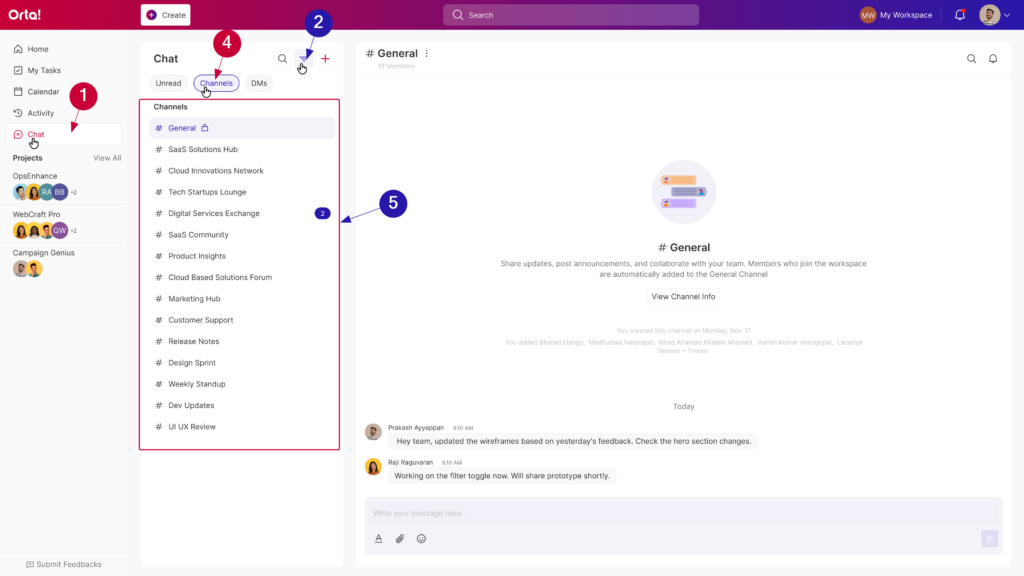
- The available filters will appear: Unread, Channels, and DMs.
- Click a Filter to apply it.
- The chat list will update immediately to show only conversations that match the selected filter.
You can switch filters at any time by clicking another option, and the chat list will update instantly.
Hide Filters While Keeping Them Applied:
After selecting a filter:
- Click the Show/Hide Filters button again.
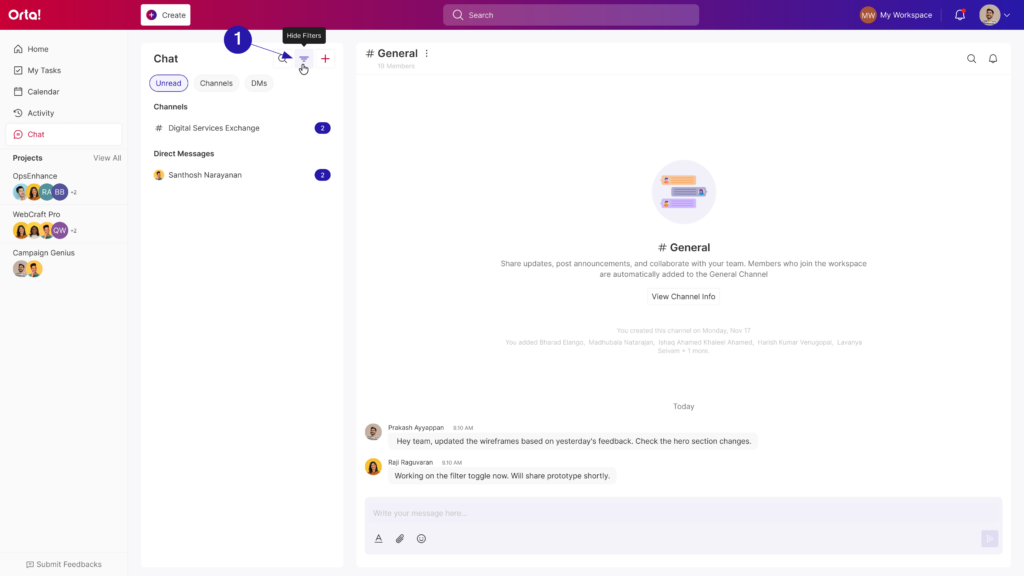
2. The filter options will collapse, but the selected filter will remain active.
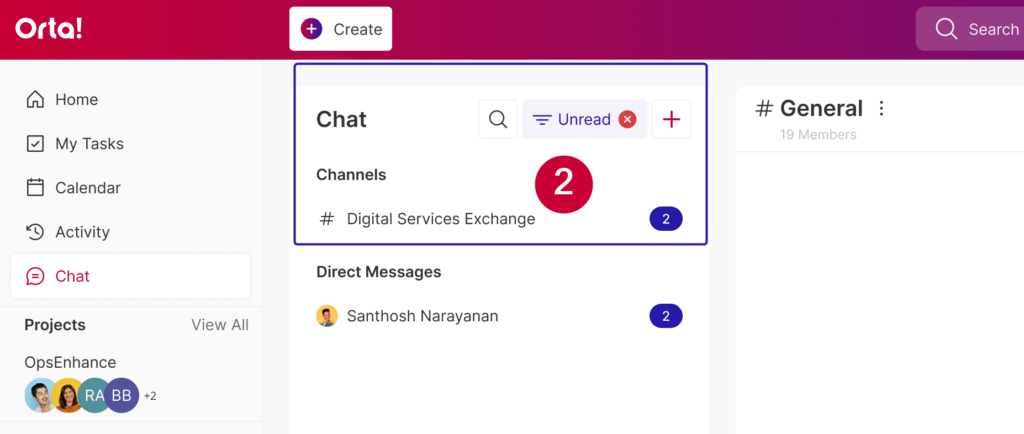
This helps keep the chat panel clean while still filtering your conversations.
Remove Applied Filters:
If you want to return to the full chat list:
- Click the x (clear filters) icon next to the Show/Hide Filters button.
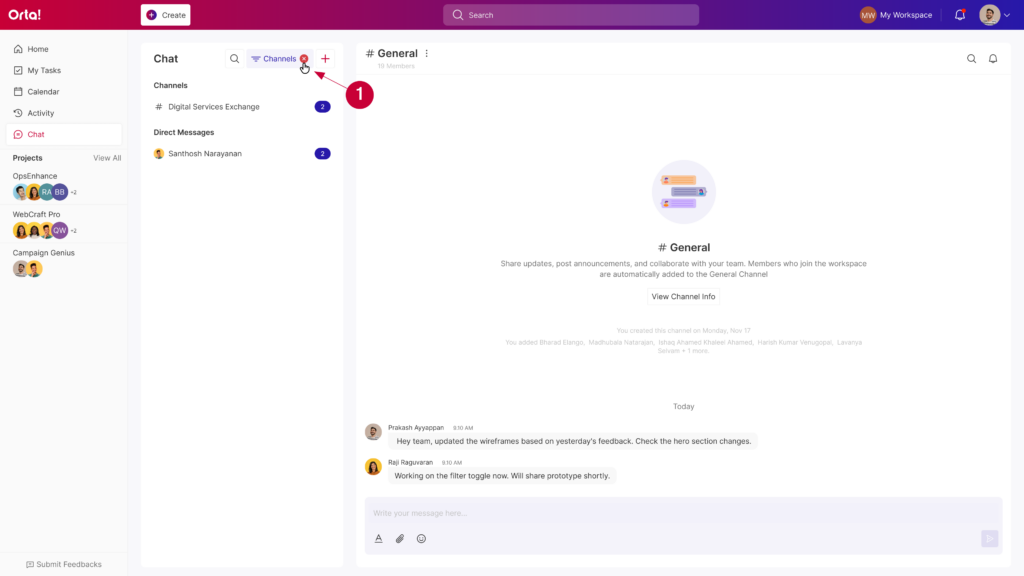
- The applied filters will be removed, and the chat panel will show all conversations again.
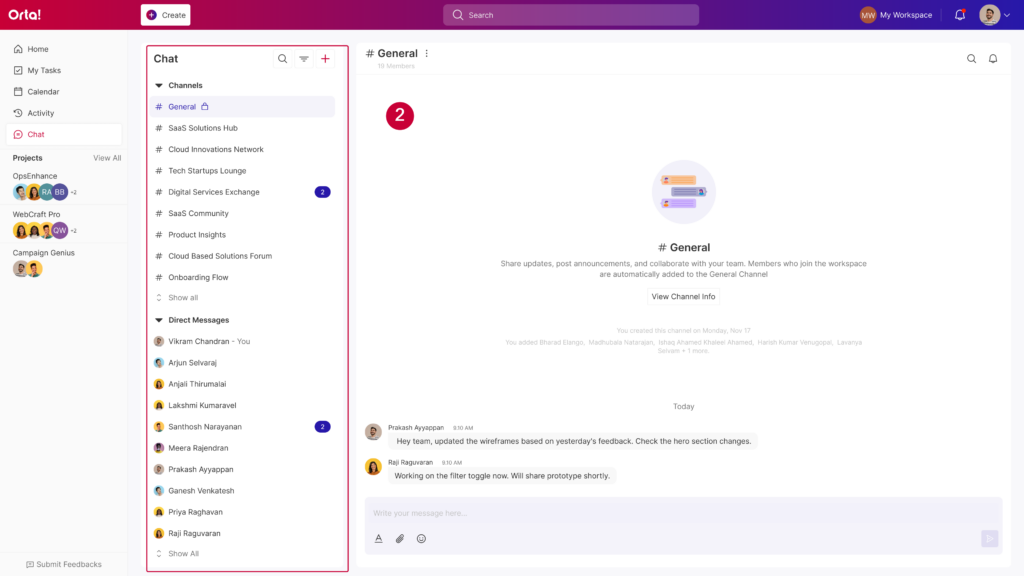
Chat Filters in Orta help you quickly narrow down conversations and focus on the chats that matter most.
Search for a chat:
If you want to quickly find a conversation with a teammate or locate a specific channel, you can use the search bar.
- In the Chat panel, click the Search conversation field.
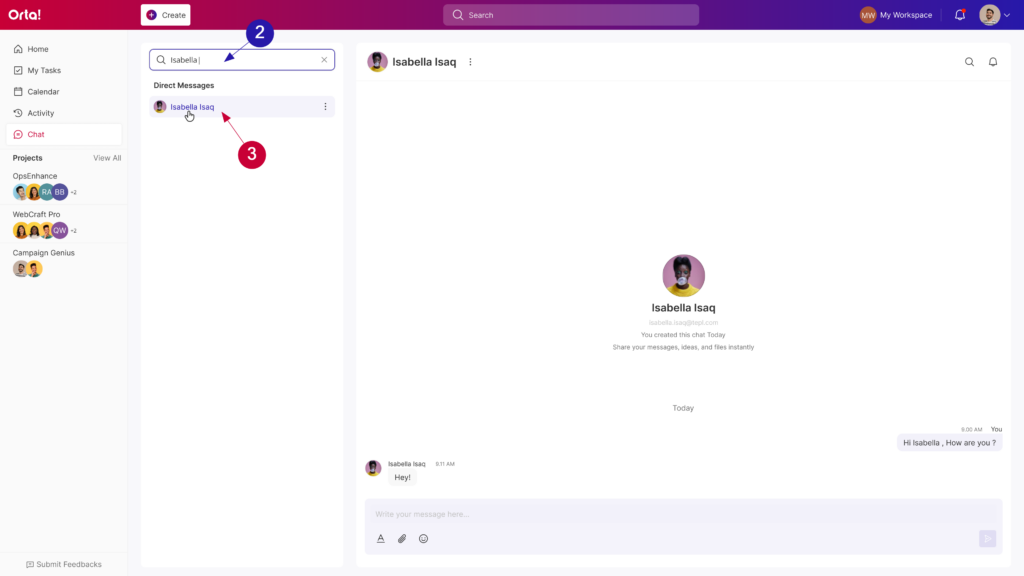
- Start typing the person’s name.
- Select the conversation from the results.
This helps you locate conversations instantly.
Search message in a conversations:
Sometimes you may need to find a specific message in a long conversation.
- Open a Direct Message conversation or Channel conversation.
- Click the Search icon in the conversation header.
- Type a keyword related to the message.
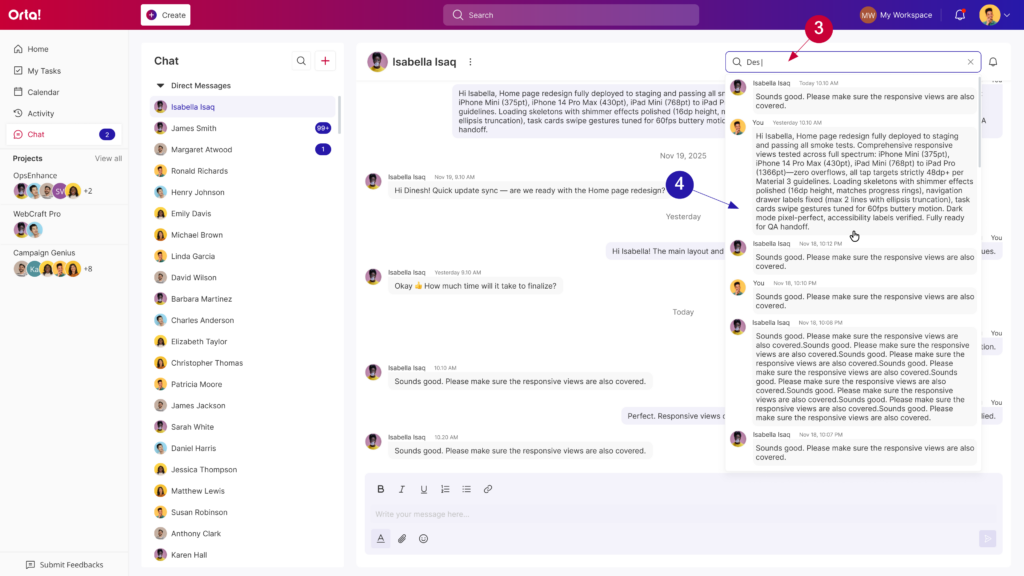
- Click on a message from the list and the chat will move quickly to the selected message.
This allows you to quickly locate important messages.
Filter Unread Direct Messages:
In addition to the main chat filters, Orta also provides a quick unread filter for both Direct Messages and Channels. This allows you to instantly focus only on conversations that contain unread messages.
How to Use the Unread DM Filter:
- Locate the Direct Messages or Channels section in the chat sidebar.
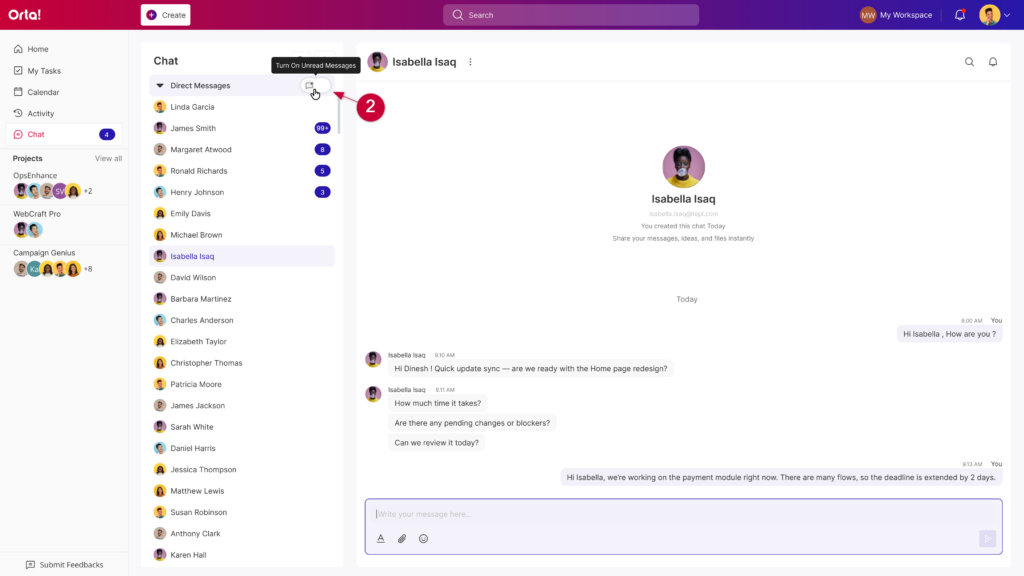
- Click the Unread Messages icon next to the respective section header.
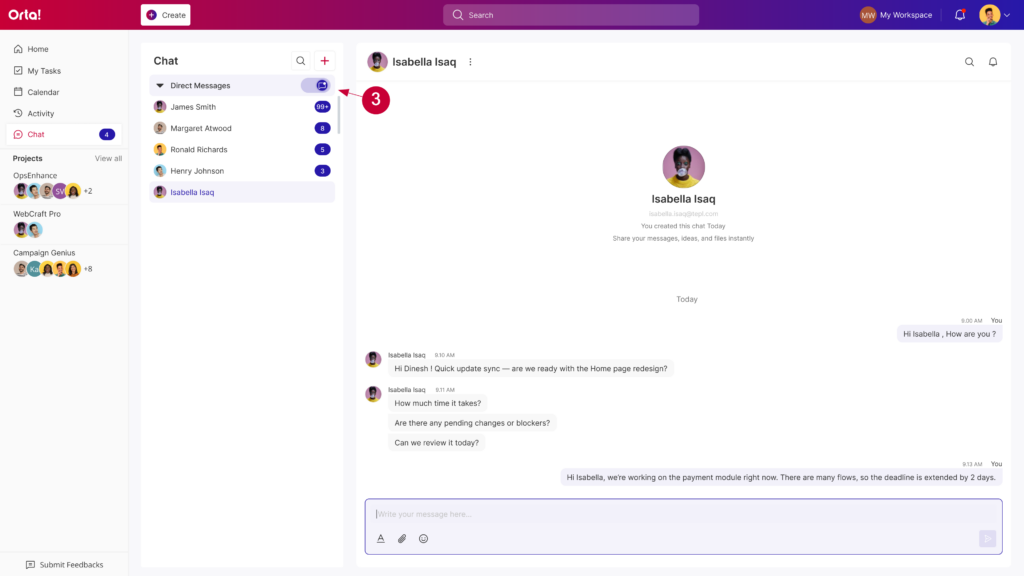
- The list will update to show only conversations with unread messages.
To return to the normal view:
- Click the Unread Messages icon again.
- The filter will turn off and all conversations in the Chat will be visible.
With chat filters, search tools, and unread indicators, Orta Chat makes it easy to navigate conversations, quickly find messages, and stay focused on the discussions that need your attention.