

The Conversation panel is where the actual discussion happens. Once you select a channel or direct message, this panel shows the full conversation and lets you read, reply, and interact with messages.
At the top of the conversation, the header displays:
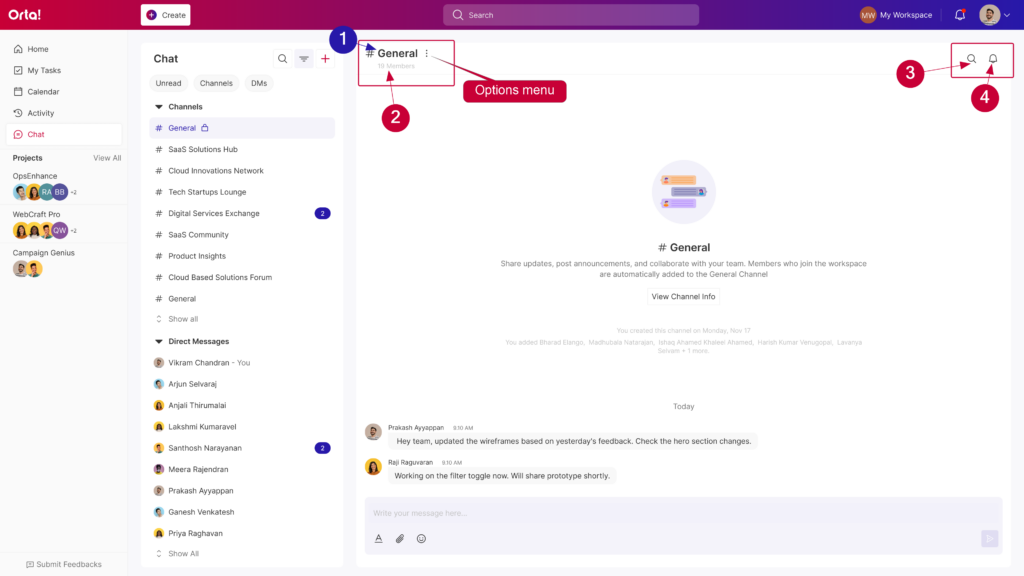
- Channel name/Contact name (for example, # General).
- Number of members in the channel.
- Search to find messages within the conversation.
- Notification bell to control notifications for that channel.
- Options menu for additional options.
Below the header, you’ll see all the messages, updates, and activity happening in that conversation, basically the part where the real work (and occasional memes) show up.
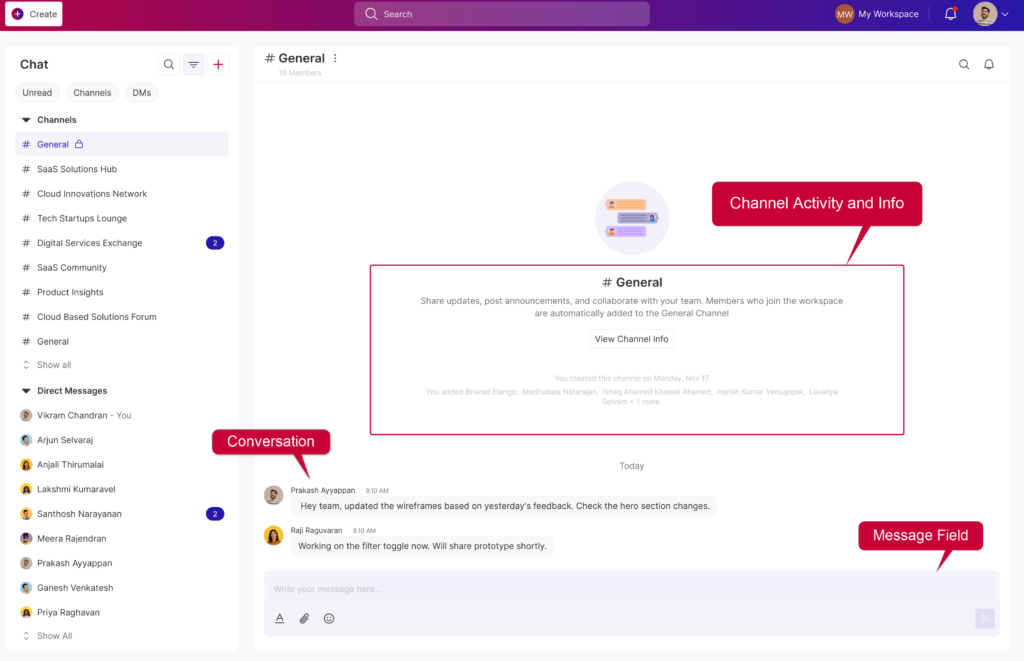
At the bottom of the panel is the message field, where you can type and send messages. From here, you can also:
- Format text.
- Attach files.
- Add emojis.
Once your message is ready, click Send, and it’ll appear in the conversation for everyone to see.
With everything in one place – messages, tools, and the message field – the conversation panel makes it easy to stay involved and keep discussions moving.