

Upgrading your Orta workspace gives you access to additional features and more flexibility. Depending on your current plan, you can either upgrade from Orta Basic to Free Trial or from Basic/Trial to Orta Pro. Follow the steps below based on what you want to upgrade to.
Orta Basic to Trial – Upgrade:
If you’re currently on Orta Basic, you can switch to the Free Trial to experience all Pro features before committing to a subscription.
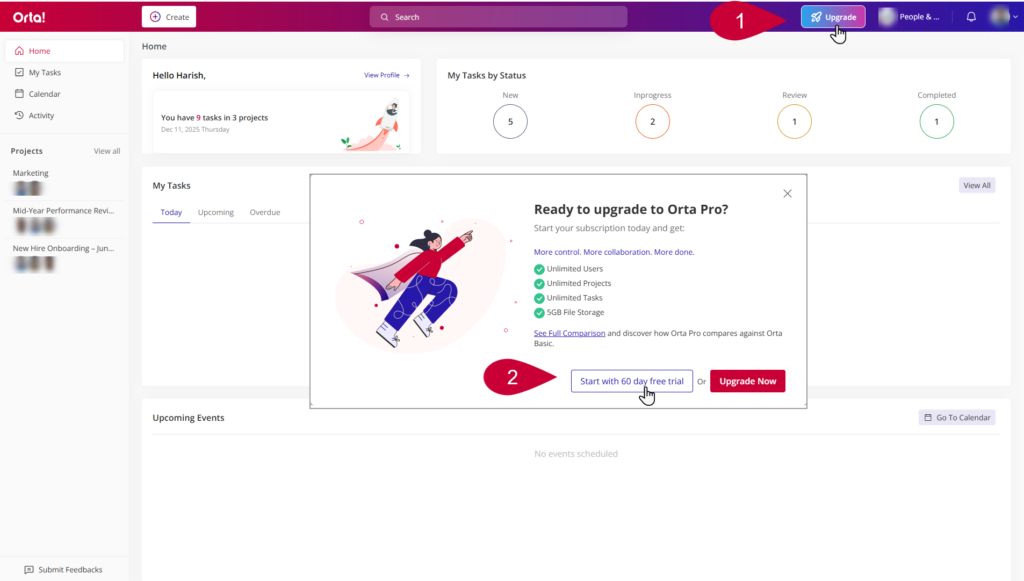
- Click on the Upgrade button on the top bar. Upgrade pop up window will be displayed.
- Click on Start with 60 day free trial button to start the Orta pro trial.

Upgrade to Orta Pro:
Upgrading to Orta Pro gives your workspace access to increased storage, and greater flexibility. You can either upgrade from the home page or from the billing menu.
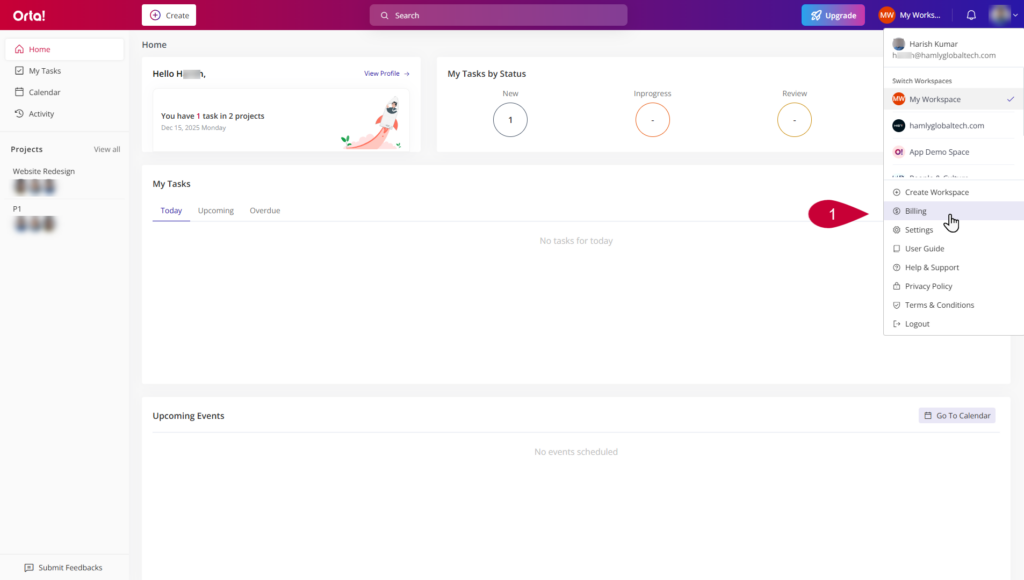
Follow the steps below to complete your upgrade from Billing Menu:
- Select Billing menu from the Profile dropdown.
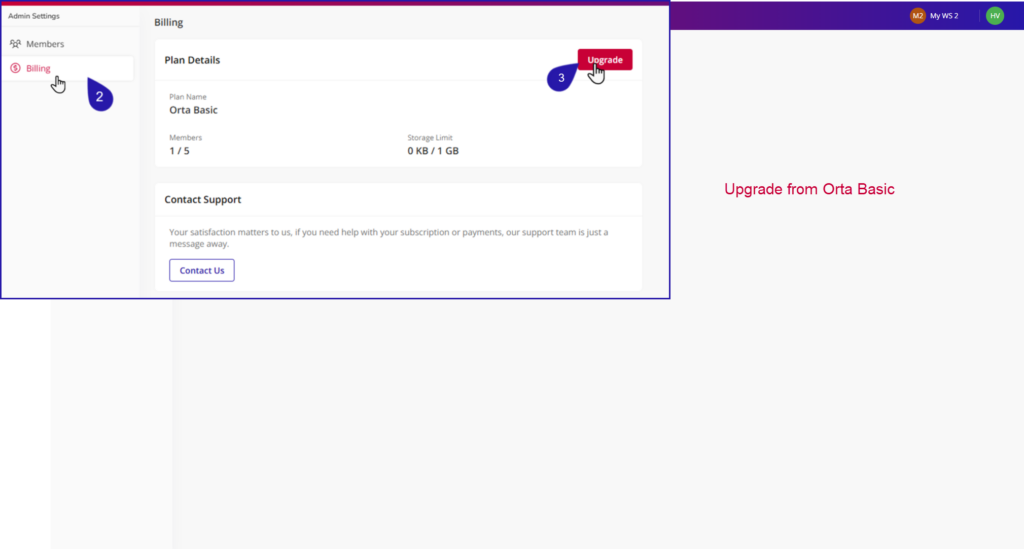
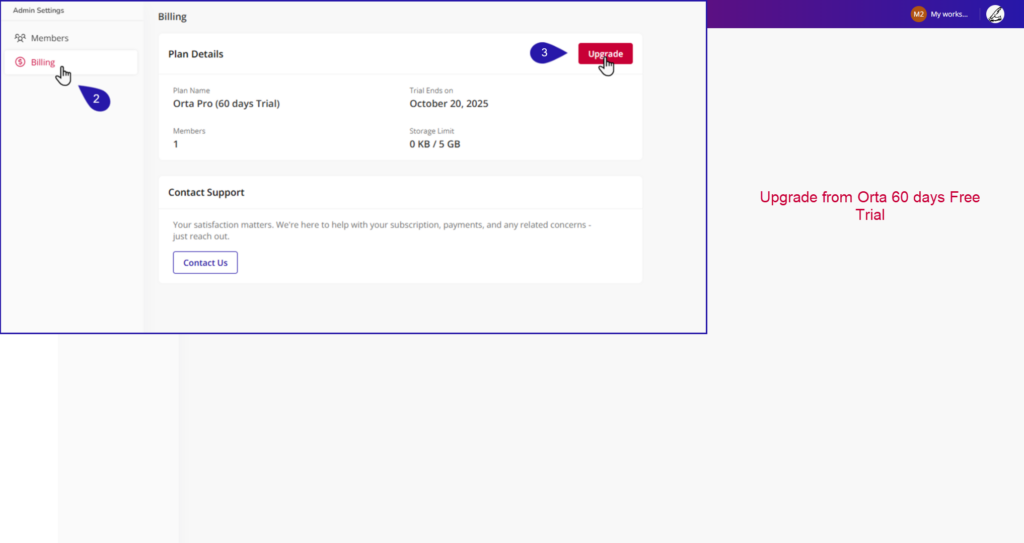
- On the Billing page, go to the Plan Details tab.
- Click the Upgrade button to begin the upgrading process.
4.Enter Payment Information:
- A payment form appears.
- Fill in details such as Organization, Country, State, City, Pin code, Address, and GST.
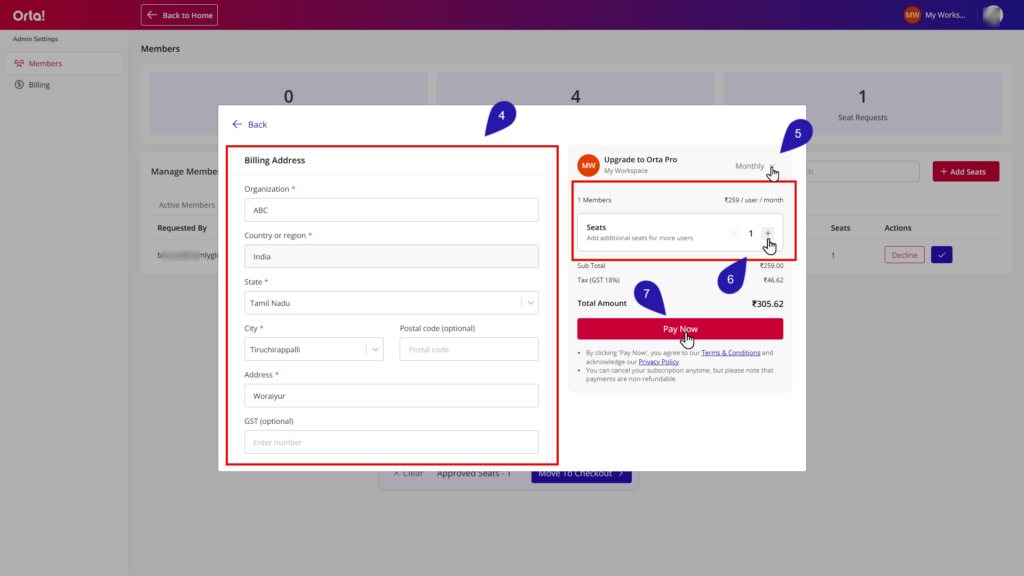
5.Select Plan Cycle:
- Choose a cycle from the dropdown: Monthly or Yearly.
6. Add Seats (Optional):
- Under Seats, click the “+” icon to add more seats if needed.
7. Complete Payment:
- Click the Pay Now button.
- You will be redirected to Razorpay’s payment page to finish the transaction.
- Complete the payment on Razorpay’s secure page.
You will be redirected back to Orta once the transaction is successful.