

If your workspace is on a 60-day free trial, you’ll need to wait until the trial period ends before downgrading to the Orta Basic plan. During the 60-day free trial, cancelling or downgrading is not available.
To cancel a Pro plan and downgrade to Orta Basic, follow these steps:
- Select Billing menu from the Profile dropdown.
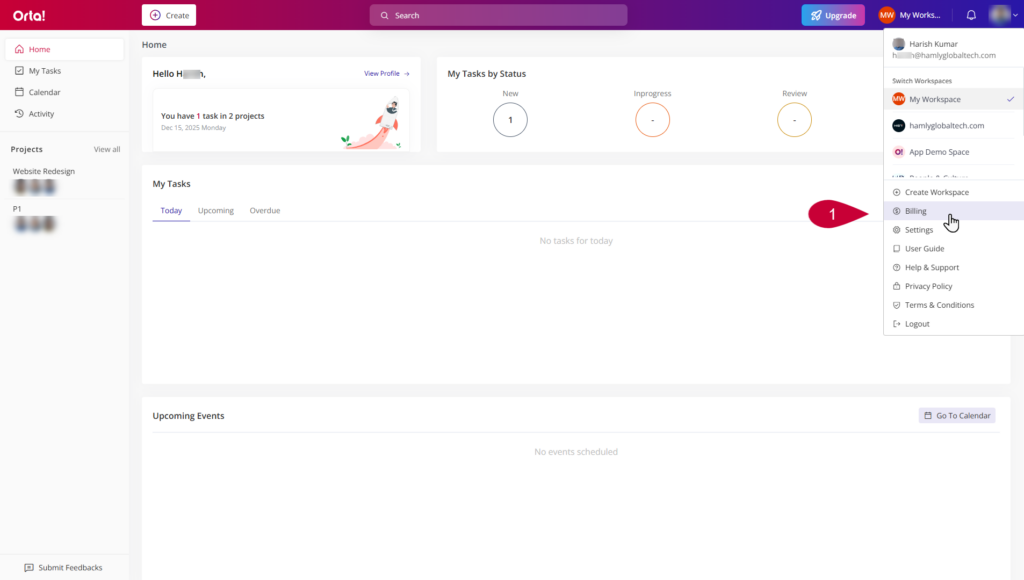
- On the Billing page, go to the Plan Details tab.
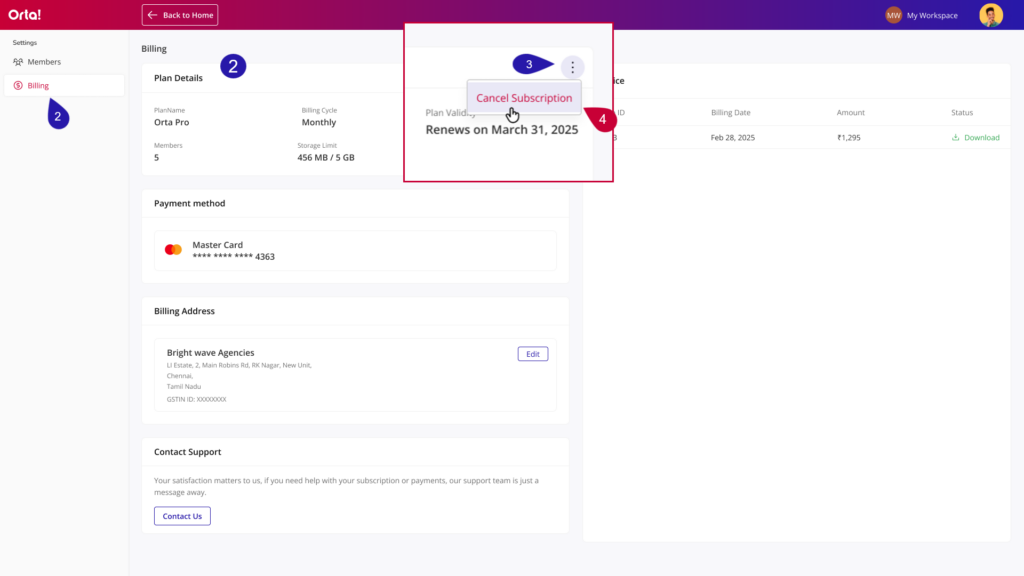
- Click the three-dots (⋯) icon on the Plan Details tab.
- Select Cancel Subscription.
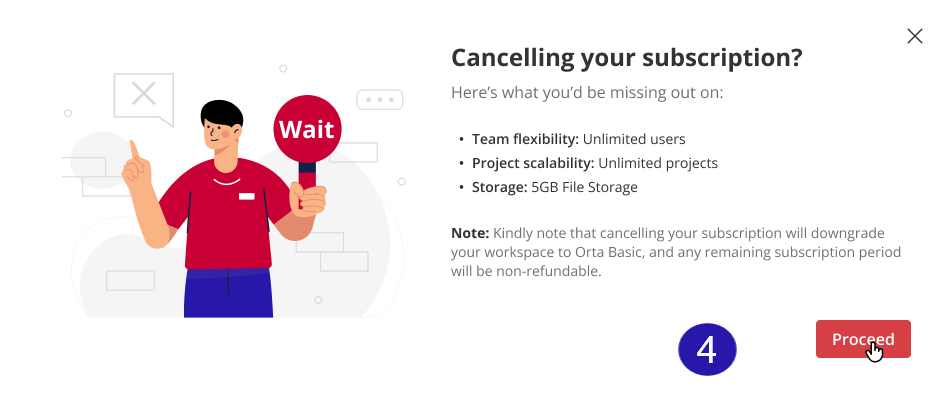
- Click Proceed in the Confirmation dialog that appears.
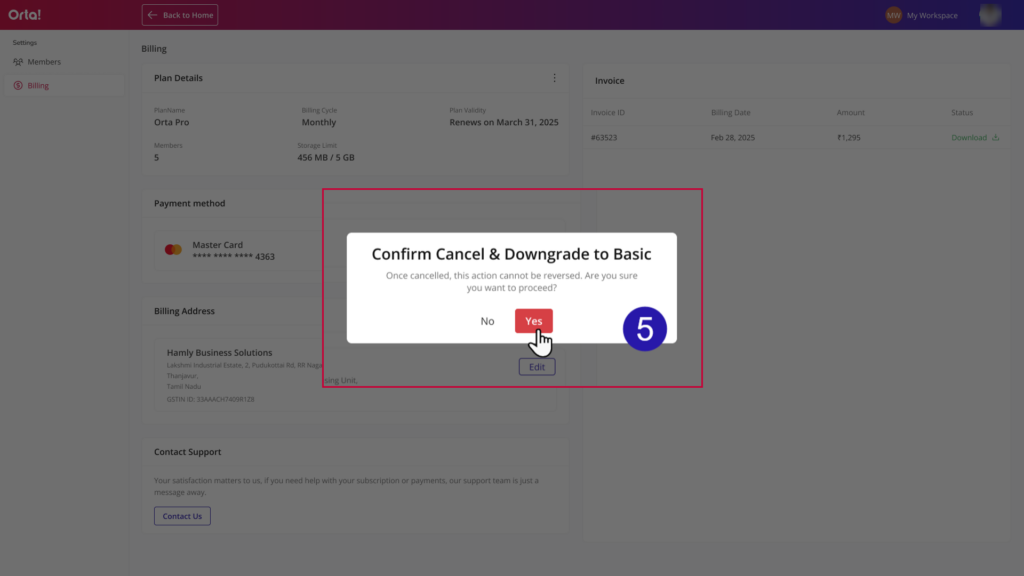
- Click Yes to confirm in the 2nd confirmation dialog that appears. (Note: Once cancelled, this action cannot be reversed.)
- The subscription will be cancelled, and the workspace will be downgraded to Orta Basic.
Post-Cancellation Feedback:
After cancelling the subscription, you are prompted to provide feedback to help Orta understand your experience and improve future updates.
- Select a reason in the Feedback Dialog that appears after the cancellation process.
- It’s too expensive
- It no longer meets our needs
- It’s no longer required or was used for temporary work
- Other
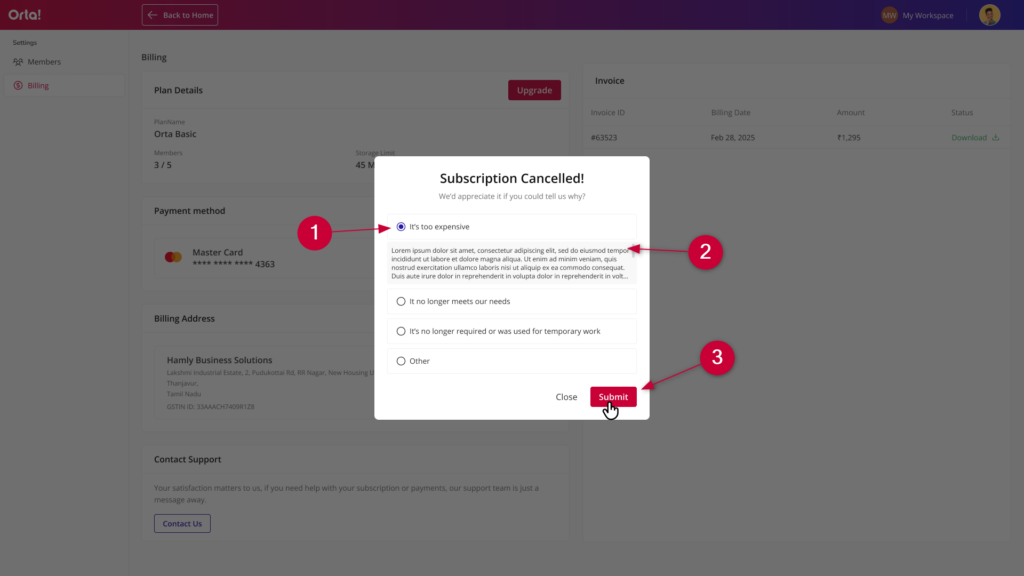
- Enter additional feedback in the text box (Optional).
- Click Submit to complete the process.
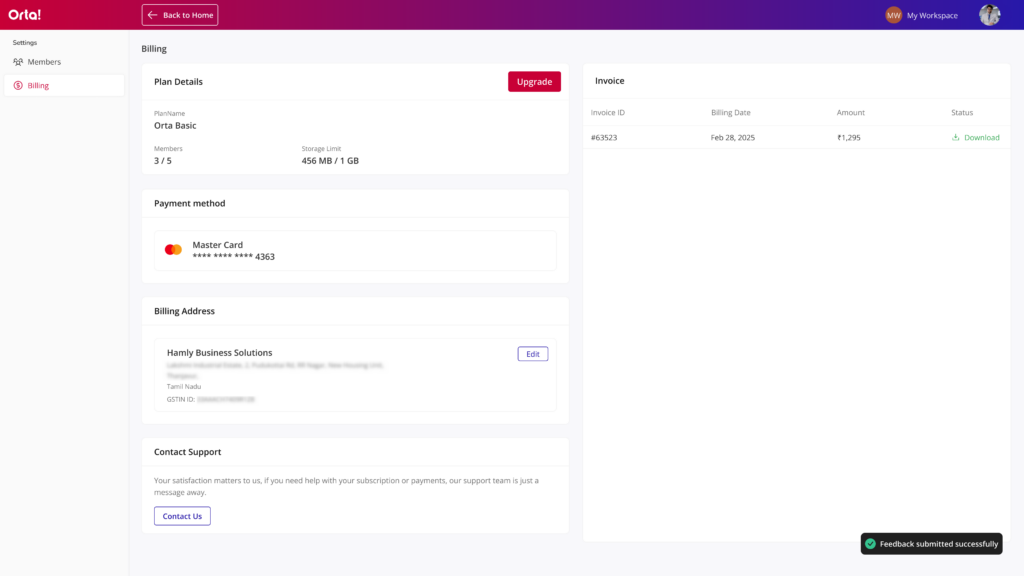
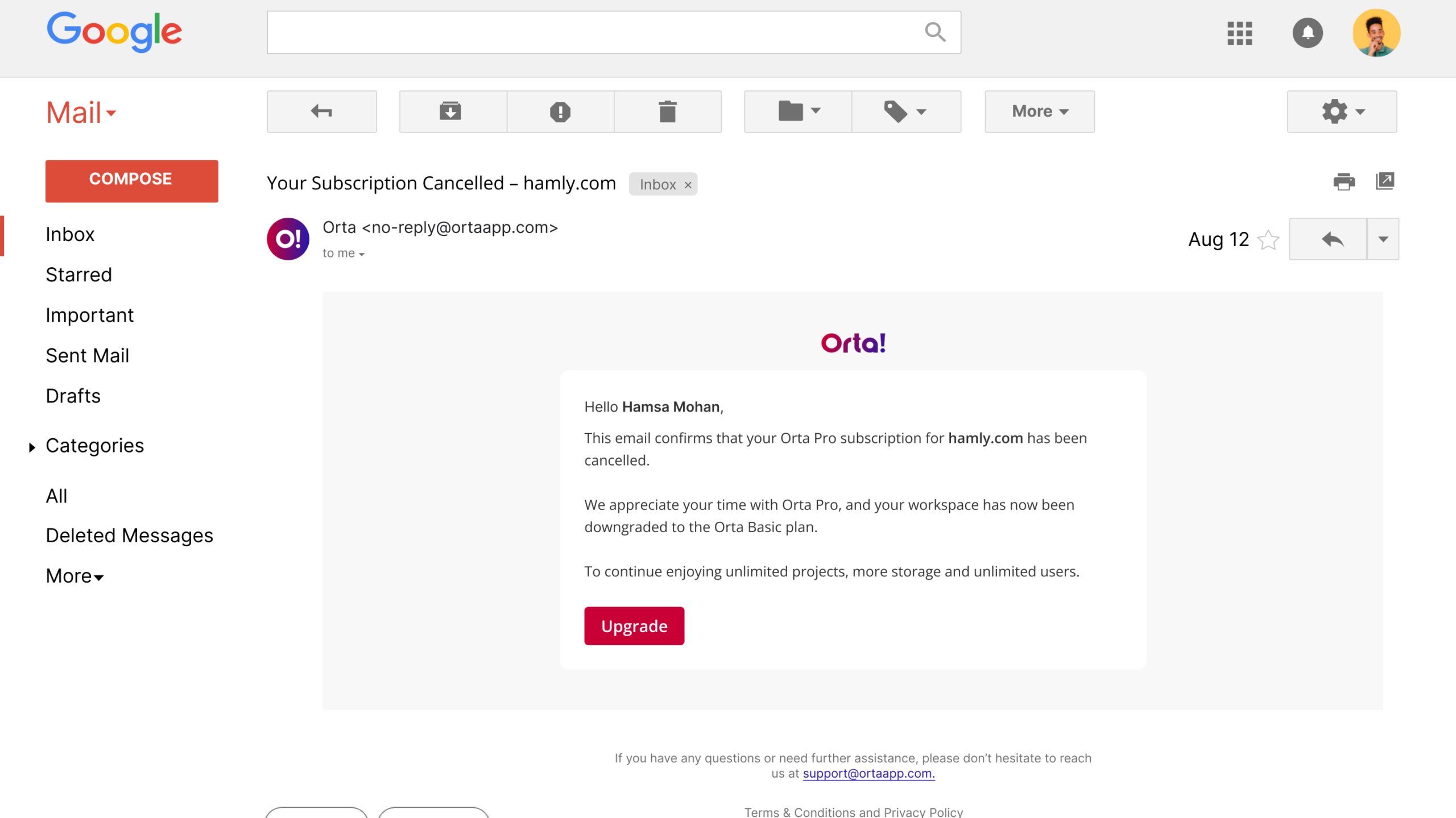
Once cancelled you will receive a confirmation toast message and also an email.
Note: If your workspace exceeds the Basic plan limits, you must reduce it before downgrading. Click “When You Don’t Meet Orta Basic Requirements” to see the step-by-step process.